PySide6
学习参考视频:bilibil-pyside6
环境搭建
pyside6本体安装
使用pip安装pyside6库
pip install pyside6
Qtdesigner
pyside6库安装完毕后,进入库目录下测试能否打开designer.exe。如果你使用的是虚拟环境,那么安装完成后,pyside6位于项目名\env\Lib\site-packages\PySide6,在该目录下能找到designer.exe。
Zeal
Zeal是一个文档查阅工具,主要用于代码查阅,在官网中选择Windows下的Installer(MSI),下载64-bit MSI。
在编写代码时,如果不知道某个控件的信号有哪些,可以在Zeal中输入控件名称,在内容中找到 signals 查看。
修改存储路径
安装完毕后,打开Zeal,点击Edit>>Prefrences。这里是Zeal文档下载后默认保存路径,点击Browse…,修改默认路径,避免后面文档无下载权限,最后点击Apply。
下载文档
点击Tools>>Docsets。此处的Installed是已经下载的文档,点击Available可以下载文档(需要魔法),点击Download即可。
常见错误
Connection timed out
连接超时,建议更换时间点下载文档,或者使用魔法,或者去找文档资源手动导入文档。
Docset storage is read only
出现显示 Docset存储是只读的情况,修改默认文档路径即可。
Content rendering error
内容呈现错误,需要删除一个js文件。
(1) 找到你阅读文档所在目录,即设置的存储路径,然后找到js文件所在目录。例如HTML的文档js位于
\设置的存储路径\HTML.docset\Contents\Resources\Documents\developer.mozilla.org\static\build\js
(2) 删除”react-main.01db16f317c6.js”文件,主要是删除react-main…js,这串字符不同环境下可能不一样。
(3) 重启Zeal即可阅读。
VScode 插件
在VScode中下载插件 PYQT Integration 。
扩展设置
在插件搜索界面,点击PYQT Integration插件右下角的设置 -> 扩展设置
Qtdesigner
找到 Pyqt-integration › Qtdesigner: Path ,一般位于最后一项。将Qtdesigner的路径复制到此处,以designer.exe结尾。
Pyrcc
找到Pyqt-integration › Pyrcc: Cmd ,一般位于第五项。将Pyrcc的路径复制在此处,如果你是虚拟环境,那么路径一般位于项目名\env\Scripts\pyside6-rcc.exe。
Pyuic
找到 Pyqt-integration › Pyuic: Cmd ,一般位于倒数第四项,将Pyuic的路径复制在此处,如果你是虚拟环境,那么路径一般位于项目名\env\Scripts\pyside6-uic.exe。
测试
拓展设置完毕后,点击资源管理器,右键资源管理器目录的空白处,此时能在选项卡的最后一项看到 PYQT:New Form ,点击可以打开Qtdesigner。
基础框架
import
在创建一个新的py文件后,导入相关库,显示一个简单的UI。
from PySide6.QtWidgets import QApplication, QMainWindow

class MyWindow(QMainWindow):
    def __init__(self):
        super().__init__()
        # 可选,设置窗口大小
        self.resize(800, 600)

if __name__ == '__main__':
    app = QApplication([])
    window = MyWindow()
    window.show()
    app.exec()
UI 构建
安装插件后,右键VScode资源管理器空白处,在弹出的选项卡最下方可以看到 PYQT:New Form ,打开后在新建菜单栏选择 Widget,即可新建一个Form。
界面和代码转换
在PyQt中设计好界面后,将文件保存为.ui文件,接下来需要将.ui文件转为python可用的.py文件并且调用,提供两种转换方式。
命令行转换
使用pyside6-uic进行转换,假设虚拟环境位于 项目名env\Scripts 下,在该目录下打开cmd,将 项目名\QT\ 目录下的counter.ui 文件转换为Py文件并放到 项目名\ 目录下。
D:\项目名\env\Scripts>pyside6-uic ../../QT/counter.ui -o ../../counter.py
VScode 插件转换
在VS code资源管理器中,右键点击需要转换的ui文件,选择最后一项 PYTQ:Compile Form 即可将ui转换为py文件。
调用ui
使用静态编译文件,提供两种方法,一种是单个类继承,另一种是多类一起继承。
单继承
在将ui文件转换为py代码后,存放在项目跟目录下,只需调用py文件的Ui_Form类即可,同时使用一个参数将Ui_Form接收。
注意:此处需要class参数和ui创建时选择的窗体类型一致,例如创建ui时选择Widget,此时需要写 class MyWindow(QWidget) 而不是 class MyWindow(QMainWindow)
from PySide6.QtWidgets import QApplication, QMainWindow, QWidget
from counter import Ui_Form

class MyWindow(QWidget):
    def __init__(self):
        super().__init__()

        self.ui = Ui_Form()
        self.ui.setupUi(self)

if __name__ == '__main__':
    app = QApplication([])
    window = MyWindow()
    window.show()
    app.exec()
多继承
在python中,可继承多个类,于使将代码中Class同时继承窗口类型和自定义的Ui_Form类,简化代码。
from PySide6.QtWidgets import QApplication, QMainWindow, QWidget
from counter import Ui_Form

class MyWindow(QWidget, Ui_Form):
    def __init__(self):
        super().__init__()
        self.setupUi(self)

if __name__ == '__main__':
    app = QApplication([])
    window = MyWindow()
    window.show()
    app.exec()
三种主要窗体
在PyQt中有三种窗体类型,QMainWindow,QWidget,QDialog。
QWidget
QWidget类是所有用户界面对象的基类。
窗口部件是用户界面的一个原子:它从窗口系统接收鼠标、键盘和其它事件,并且将自己的表现形式绘制在屏幕上。每一个窗口部件都是矩形,并且它们按Z轴顺序排列。一个窗口部件可以被它的副窗口部件或者它前面的窗口部件盖住一部分。
QWidget有很多成员函数,但是它们中的一些有少量的直接功能:例如,QWidget有字体属性,但是自己从来不用。为很多继承它的子类提供了实际的功能,比如QLabel、QPushButton、QCheckBox等等。
没有父窗体的小部件始终是一个独立的窗口(顶级窗口部件)。非窗口的小部件为子部件,它们在父窗口中显示。Qt中大多数部件主要被用作子部件。例如:可以显示一个按钮作为顶层窗口,但大多数人更喜欢将按钮内置于其它部件,如QDialog。
QMainWindow
QMainWindow类提供一个有菜单条、工具栏、状态条的主应用程序窗口(例如:开发Qt常用的IDE-Visual Studio、Qt Creator等)。
一个主窗口提供了构建应用程序的用户界面框架。Qt拥有QMainWindow及其相关类来管理主窗口。
QMainWindow拥有自己的布局,我们可以使用QMenuBar(菜单栏)、QToolBar(工具栏)、QStatusBar(状态栏)以及QDockWidget(悬浮窗体),布局有一个可由任何种类小窗口所占据的中心区域。
QDialog
QDialog类是对话框窗口的基类。
对话框窗口是一个顶级窗体,主要用于短期任务以及和用户进行简要通讯。QDialog可以是模式的也可以是非模式的。QDialog支持扩展性并且可以提供返回值。它们可以有默认按钮。QDialog也可以有一个QSizeGrip在它的右下角,使用setSizeGripEnabled()。
注意:QDialog(以及其它使用Qt::Dialog类型的widget)使用父窗口部件的方法和Qt中其它类稍微不同。对话框总是顶级窗口部件,但是如果它有一个父对象,它的默认位置就是父对象的中间。它也将和父对象共享工具条条目。
使用原则
* 如果需要嵌入到其他窗体中,则基于QWidget创建。
* 如果是主窗体,则基于QMainWindow创建。
* 如果是顶级对话框,则基于QDialog创建。
信号与槽
信号(signal)与槽(slot)是Qt的核心机制,PyQt中每一个QObject对象(包括各种窗口和控件)都支持信号与槽机制,通过信号与槽之间的关联以实现对象之间的通信,当信号发射时,连接的槽函数就自动执行,信号与槽通过对象的signal.connect()连接的。
PyQt5使用信号与槽的主要特点: * 一个信号可以使用多个槽 * 一个槽可以监听多个信号 * 信号与信号之间可以互联 * 信号与槽之间的连接可以跨线程 * 信号与槽的连接方式既可以是同步也可以是异步 * 信号的参数可以是任何Python类型
基础使用方法
示例:在Qt Designer中设计一个简易的登录框,静态编译后在python中导入。
当出现点击事件时,获取用户名和密码的信号,调用自定义的函数判断账号密码是否正确,使用弹窗回显信息。
此示例中,函数使用self.属性名.text()方式获取信号,此处的属性名在Qt Designer中点击对应的控件后在右侧属性栏可以看到。
from PySide6.QtWidgets import QApplication, QWidget,QMessageBox
from QT.Ui_login import Ui_Form

class MyWindow(QWidget,Ui_Form):
    def __init__(self):
        super().__init__()
        # 绑定
        self.setupUi(self)
        # 获取按钮Clicker事件后执行loginFuc函数
        self.pushButton.clicked.connect(self.loginFuc)

    def loginFuc(self):
        # 获取账号和密码的信号
        account = self.lineEdit.text()
        passwd = self.lineEdit_2.text()
        if account == 'root' and passwd == '123456':
            self.showMsg('密码正确')
        else:
            self.showMsg('密码错误')
    # 弹窗
    def showMsg(self,msg):
        QMessageBox.information(self,'提示',msg)

if __name__ == '__main__':
    app = QApplication([])
    window = MyWindow()
    window.show()
    app.exec()
向槽函数中传递多个参数
在 PyQt 中,使用 connect() 方法连接一个信号到一个槽函数时,只能传递一个函数或者一个可调用的对象作为参数。然而,我们经常会遇到需要多参数传递的情况。
lambda
例如设置按钮1绑定槽函数on_button,假设定义on_button接收两个参数,则可以使用lambda方式传参,使用lambda可以传递任何其他东西---甚至是按钮组件本身(假如,槽打算把传递信号的按钮修改为不可用)
button1.clicked.connect(lambda: self.on_button(name,type))

def on_button(self, name, type):
    pass
partial
使用functools里的partial函数
button1.clicked.connect(partial(self.on_button, 1, 2))
在 Qt designer 中绑定信号与槽
除了使用代码绑定信号与槽,Qt designer中也能绑定信号与槽,不过功能较少,一般都需要通过代码绑定。
在 Qt designer 中拖入两个控件,例如拖入一个滑块 Horizontal Slider 和一个标签 Lael,之后点击左上角功能区的绑定信号与槽(一般是“设置”右下方的图标),选中滑条并拖动到Label上完成绑定,此时在 配置连接 界面中,在配置界面选中 显示从QWidget 继承的信号与槽,选中滑条的信号sliderMoved,再选中Label的槽setNum即可完成绑定。此时按下ctrl + r,拖动滑条即可看到效果。
除了拖动两个控件绑定,还可以只选中一个控件并且拖动到窗口空白区,此时与窗口绑定,例如事件:点击按钮后关闭窗口。
基础控件
基础控件类型
Layouts
布局控件,用于规定其余控件的布局,框选需要布局的控件后,可选择水平/垂直等方式,设置Layouts后,控件会随着界面的放大缩小一起变化。
Buttons
按钮控件栏,包含一般的常用按钮:
- Push Button 基础按钮
- Tool Button 工具按钮
- Radio Button 独选按钮
- Check Button 勾选按钮
- Command Button 跳转按钮
Input Widgets
输入框控件,包含多种输入框或选择框:
- Combo Box 下拉组合框
- Line Edit 输入框
- Text Edit 富文本框
- Plain Text Edit 纯文本框
- Spin Box 旋转框
Display Widgets
展示框控件,包含多种输出类型控件:
- Label 标签
- Text Browser 文本浏览器
QPushButton 控件
基础的按钮控件,需要导入QPushButton,传递两个参数,前面是按钮名字,如果没有任何布局,后面的参数一定要传递self,不然不会显示在窗口上。
class MyWindow(QMainWindow):
    def __init__(self):
        super().__init__()
        btn = QPushButton('按钮',self)
属性:geometry
几何属性 geometry,决定button的位置(x,y)以及宽高。格式为btn.setGeometry(x,y,宽,高),例如设置一个在(70,50)上宽40高30的按钮
class MyWindow(QMainWindow):
    def __init__(self):
        super().__init__()
        btn = QPushButton('按钮',self)
        btn.setGeometry(70,50,40,30)
属性:ToolTip
提示属性,将鼠标放到按钮出,会出现一个小的悬浮框。
btn.setToolTip('点我')
属性:Text
文本属性,该属性确定了按钮显示的文本,如果在此前的QPushButton中设置过文本,那么该属性会覆盖之前的文本内容。
class MyWindow(QMainWindow):
    def __init__(self):
        super().__init__()
        btn = QPushButton('按钮',self)
        btn.setGeometry(70,50,40,30)
        btn.setToolTip('悬浮框')
        btn.setText('确认')
属性:Checkable
在Qtdesigner中,有一个属性名为 Checkable ,属性可以让button一直处于选中状态,设置属性的方式为 btn.set + 属性名。
class MyWindow(QMainWindow):
    def __init__(self):
        super().__init__()
        btn = QPushButton('按钮',self)
        btn.setGeometry(70,50,40,30)
        btn.setCheckable(1)
其余属性
在Qtdesigner中可以查看到控件的所有属性,如需设置某属性,使用 btn.set + 属性名 即可。
QLabel 控件
基础的标签控件,需要导入QLabel,传递两个参数,前面是标签内容,如果没有任何布局,后面的参数一定要传递self,不然不会显示在窗口上。
class MyWindow(QMainWindow):
    def __init__(self):
        super().__init__()
        lb = QLabel('标签',self)
属性:textFormat
QLabel 标签有许多与 QPushbutton 相同的属性,同时 Qlabel 还有一些特有属性,例如 textFormat ,一般特有属性会在属性菜单最下方。
textFormat 规定了文本格式化的方式,有四个选项
- 自动: Auto Text
- 纯文档格式:Plain Text
- 富文档格式: Rich Text
- markdown格式: Markdown Text
属性:Alignment
对齐方式,需要导入库 from PySide6.QtCore import Qt ,之后设置对齐方式,需要有布局才能看到效果。
lb.setAlignment(Qt.AlignmentFlag.AlignCenter)
QLineEdit 控件
基础的输入框控件,需要导入QLineEdit,传递两个参数,前面是输入框默认的内容,可以为空,如果没有任何布局,后面的参数一定要传递self,不然不会显示在窗口上。
拖动控件实现简单的图形化编辑,使用ctrl + R 预览
line = QLineEdit('abc',self)
- 基本方法
| 基本方法 | 描述 |
|---|---|
setPlaceholderText(str) | 在编辑框没有任何内容时设置一个灰色提示内容 |
setText(QString text) | 设置编辑框的文本 |
text() | 返回编辑框的当前文本 |
insert(QString text) | 在当前光标位置插入文本 |
clear() | 清除编辑框中的文本 |
setReadOnly(bool readOnly) | 设置编辑框是否为只读 |
sReadOnly() | 返回编辑框是否为只读 |
setClearButtonEnabled(bool enable) | 设置是否显示清除按钮 |
setEchoMode(QLineEdit::EchoMode mode) | 设置回显模式,如正常、密码、无回显等 |
- 基本信号
| 基本信号 | 描述 |
|---|---|
cursorPositionChanged(int oldPos, int newPos) | 当光标位置在编辑过程中改变时触发。这个信号携带两个参数:旧光标位置和新光标位置。 |
editingFinished() | 当编辑操作完成时触发,这通常发生在用户按下回车键或关闭窗口时。这个信号没有参数。 |
inputRejected() | 当用户在编辑过程中取消或拒绝输入时触发。这个信号没有参数。 |
returnPressed() | 当用户在编辑框中按下回车键时触发。这个信号没有参数。 |
selectionChanged() | 当选中的文本内容改变时触发。这个信号没有参数。 |
textChanged(const QString &text) | 当文本内容改变时触发。这个信号携带一个参数,即新的文本内容。 |
textEdited(const QString &text) | 当文本内容被编辑时触发,这包括剪切、粘贴、删除等操作。这个信号携带一个参数,即新的文本内容。 |
QCombo Box
QCombo Box是一个下拉选择框,使用该控件规定用户只能选择下拉菜单中的某一个选项。
使用示例如下,示例中使用QVBoxLayout做布局,在用户切换选择时,会弹出用户切换后的选项。
from PySide6.QtWidgets import QApplication, QWidget,QComboBox,QVBoxLayout,QMessageBox

# 登录框
class MainWindow(QWidget):
    def __init__(self):
        super().__init__()

        combo = QComboBox()
        combo.addItems(['a','b','c'])
        combo.currentTextChanged.connect(lambda: self.showMsg(combo.currentText()))

        mainlayout = QVBoxLayout()
        mainlayout.addWidget(combo)
        self.setLayout(mainlayout)

    def showMsg(self,msg):
        QMessageBox.information(self,'提示',msg)
QCheck Box
QCheck Box是一个选择框,该控件只有一个信号(signal),即在用户改变其状态(选中,取消选中)时。
stateChanged会自带传递一个int参数,当选择框由未勾选变为勾选时传递参数2,反之传递0。
使用isChecked(),可以获取到选中框的状态,返回bool类型的值。
class MainWindow(QWidget):
    def __init__(self):
        super().__init__()

        check = QCheckBox('选中')
        check.stateChanged.connect(self.showMsg)
        # isChecked()方法获取选中状态
        btn = QPushButton('获取状态')
        btn.clicked.connect(lambda:print(check.isChecked()))

        mainlayout = QVBoxLayout()
        mainlayout.addWidget(check)
        mainlayout.addWidget(btn)
        self.setLayout(mainlayout)
    # 获取选中框在改变时的返回值,值为0或2
    def showMsg(self,msg):
        print(msg)
QRadioBox
QGroupBox
Radio button 是一个选中按钮,当存在多个选择按钮时,只能选择一个,但是有时,我们需要选中多个按钮,例如我们需要选择性别,然后选择国家。此时就需要用到Group Box,位于同一个Group Box的多个按钮,每次只能选中一个。
QButtonGroup
QGroupBox 可以在Qt designer中直接设计,但是QButtonGroup则只能能用代码的形式进行构建。QButtonGroup 与 QGroupBox 实现的功能相同,创建一个组,将按钮放置在组中。
这里给出一个简单的代码示例,UI界面有三行,第一行有三个按钮绑定在QButtonGroup1中,第二行的两个按钮绑定在QButtonGroup2中,第三行的Label接收到按钮变化时实时更新。
from PySide6.QtWidgets import QApplication, QWidget,QButtonGroup,QLabel,QRadioButton,QHBoxLayout,QVBoxLayout
# 登录框
class MyWindow(QWidget):
    def __init__(self):
        super().__init__()
        # 设置按钮
        self.group1 = QButtonGroup(self)
        label1 = QLabel('选中你的语言')
        btn1 = QRadioButton('python')
        btn2 = QRadioButton('java')
        btn3 = QRadioButton('c++')
        # 将按钮加入QButtonGroup
        self.group1.addButton(btn1)
        self.group1.addButton(btn2)
        self.group1.addButton(btn3)
        # 绑定信号
        btn1.toggled.connect(self.change_text)
        btn2.toggled.connect(self.change_text)
        btn3.toggled.connect(self.change_text)


        self.group2 = QButtonGroup(self)
        label2 = QLabel('请选择你平均写代码时间')
        btn4 = QRadioButton('1 hour')
        btn5 = QRadioButton('2 hour')

        self.group2.addButton(btn4)
        self.group2.addButton(btn5)

        btn4.toggled.connect(self.change_text)
        btn5.toggled.connect(self.change_text)

        self.label_show = QLabel('请选择编程语言和时间')
        # 设置水平布局
        h1 = QHBoxLayout()
        h1.addWidget(label1)
        h1.addWidget(btn1)
        h1.addWidget(btn2)
        h1.addWidget(btn3)
        # 设置第二行水平布局
        h2 = QHBoxLayout()
        h2.addWidget(label2)
        h2.addWidget(btn4)
        h2.addWidget(btn5)
        # 设置垂直布局
        mainLayout = QVBoxLayout()
        mainLayout.addLayout(h1)
        mainLayout.addLayout(h2)
        mainLayout.addWidget(self.label_show)

        self.setLayout(mainLayout)

    def change_text(self):
        language = self.group1.checkedButton() # 返回按钮组1中被选中的按钮
        time = self.group2.checkedButton() # 返回按钮组2中被选中的按钮
        if language is not None and time is not None:
            self.label_show.setText(
                f'你的编程语言是:{language.text()} \t 你平均敲代码时间是:{time.text()}'
            )

if __name__ == '__main__':
    app = QApplication([])
    window = MyWindow()
    window.show()
    app.exec()
QTextEdit & QPlanTextEdit
QTextEdit为富文本框,QPlanTextEdit为纯文本输入框。
- 基础方法
| 基础方法 | 描述 |
|---|---|
setText(str) | 设置文本内容 |
clear() | 清除所有内容 |
append(str) | 在文本编辑器的末尾追加文本 |
setReadOnly(bool) | 设置文本编辑器为只读 |
isReadOnly() | 检查文本编辑器是否为只读 |
toPlainText() | 获取文本编辑器的纯文本内容 |
setMarkdown(str) | 设置文本编辑器的内容为markdown |
setHtml(str) | 设置文本编辑器的内容为HTML |
setPlainText(str) | 设置文本编辑器的内容为纯文本 |
- 基本信号
| 基础信号 | 描述 |
|---|---|
textchange() | 当文本编辑器的内容发生变化时发出 |
selectionChanged() | 当文本选择发生变化时发出 (鼠标点击或选择) |
textEdit = QPlainTextEdit()
textEdit.setPlainText('title')
textEdit.appendPlainText('content')
btn = QPushButton('add')
btn.clicked.connect(lambda: textEdit.appendPlainText('追加'))

self.mainLayout = QVBoxLayout()
self.mainLayout.addWidget(textEdit)
self.mainLayout.addWidget(btn)
self.setLayout(self.mainLayout)
QTextEdit 设置 markdown ,需要注意缩进格式,确保markdown能正常显示
from PySide6.QtWidgets import QApplication, QGridLayout, QTextEdit, QWidget, QPushButton

class MyWindow(QWidget):
    def __init__(self):
        super().__init__()
        self.resize(300, 200)

        self.gridlayout = QGridLayout()

        self.richtext = QTextEdit()
        # 默认提示
        self.richtext.setPlaceholderText(' 请输入内容 ')

        self.btn_add = QPushButton('追加')
        self.btn_clear = QPushButton('清空')

        self.btn_add.clicked.connect(lambda: self.richtext.append('追加内容'))
        self.btn_clear.clicked.connect(self.richtext.clear)


        MarkdownStr = """
# title1
`支持代码格式`
# title2
- 1
- 2
- 3

<table>
  <tr>
    <th > 方法 </th>
    <th > 说明 </th>
  </tr>
  <tr>
    <td rowspan="5">addWidget (Widget,row,col,alignment)</td>
    <td>
    给网格布局添加部件,设置指定的行和列,起始位置的默认值为(0,0)
    </td>
  </tr>
  <tr>
    <td>widget:所添加的控件 </td>
  </tr>
  <tr>
    <td>row:控件的行数,默认从 0 开始 </td>
  </tr>
  <tr>
    <td>column:控件的列数,默认从 0 开始 </td>
  </tr>
  <tr>
    <td>alignment:对齐方式。</td>
  </tr>
</table>
"""
        self.richtext.setMarkdown(MarkdownStr)
        # (控件名,起始行,起始列,占据行,占据列)
        self.gridlayout.addWidget(self.richtext,0,0,1,2)
        self.gridlayout.addWidget(self.btn_add,1,0)
        self.gridlayout.addWidget(self.btn_clear,1,1)
        self.setLayout (self.gridlayout)


if __name__ == '__main__':
    app = QApplication([])
    window = MyWindow()
    window.show()
    app.exec()
QSlider
QSlider 是一个常用的滑条控件,常用的信号为:valueChanged,即滑条被改变时,同时滑条具有一些特殊的属性,例如刻度尺,在创建滑条时,需要设置滑条是水平还是垂直,这需要从Pyside6.QtCore中导入Qt库。
以下提供一个滑条的基础代码,在代码中有一个self.sender(),该函数主要获取被改变的控件,例如在存在相同多个控件时,使用该函数获取到被用户改变的控件。同时代码中有两种获取滑条当前值的方式,使用self.slider.value(), 或者slef.sender().value()
from PySide6.QtWidgets import QApplication, QWidget, QSlider, QVBoxLayout, QLabel
from PySide6.QtCore import Qt

class MyWindow(QWidget):
    def __init__(self):
        super().__init__()

        self.resize(800, 600)

        mainlayout = QVBoxLayout()
        # 设置滑条为水平和垂直
        self.slider1 = QSlider(Qt.Orientation.Horizontal)
        self.slider2 = QSlider(Qt.Orientation.Vertical)
        # 设置刻度位置
        self.slider1.setTickPosition(QSlider.TickPosition.TicksBelow)
        self.slider2.setTickPosition(QSlider.TickPosition.TicksAbove)
        # 设置刻度间隔(值越大刻度越少)
        self.slider1.setTickInterval(5)
        self.slider2.setTickInterval(10)
        # 设置滑条最小值和最大值
        self.slider1.setMinimum(50)
        self.slider1.setMaximum(200)

        self.label = QLabel('请拖动滑条')
        self.label2 = QLabel()

        self.slider1.valueChanged.connect(self.showSlider)
        self.slider2.valueChanged.connect(self.showSlider)

        mainlayout.addWidget(self.label)
        mainlayout.addWidget(self.label2)
        mainlayout.addWidget(self.slider2)
        mainlayout.addWidget(self.slider1)

        self.setLayout(mainlayout)

    def showSlider(self):
        X_axis_value = self.slider1.value()
        Y_axis_value = self.slider2.value()
        current_Widget = self.sender()
        if current_Widget == self.slider1:
            slider = 'Slider 1'
        else:
            slider = 'Sliser 2'
        self.label2.setText(f'你改变了: {slider} 改变后值为: {current_Widget.value()}, 当前参数为({X_axis_value}, {Y_axis_value})')

if __name__ == '__main__':
    app = QApplication([])
    windows = MyWindow()
    windows.show()
    app.exec()
QListWidget
常用方法
QListWidget 是一个用于显示列表项的组件,每个列表项通常由一个图标和一个文本组成。用户可以通过单击或选择列表项来与其进行交互。
from PySide6.QtWidgets import QListWidget
self.listWidget = QListWidget()
增加元素
QListWidget 可以使用 addItem 或 addItems 来实现假如一个或多个元素,addItem添加元素可传入str或者使用QListWidgetItem(需要导入), 使用addItems添加多个元素时,只能添加str的Sequence(类比列表)
使用 item(索引) 的方式访问元素。
以下为一个创建和访问示例,这里使用了Faker库生成随机人名并添加到QListWidget
from PySide6.QtWidgets import QListWidget, QListWidgetItem
from faker import Faker
self.fake = Faker(locale='zh_CN')

self.listWidget = QListWidget()
# 添加单个元素
self.listWidget.addItem(self.fake.name())
self.listWidget.addItem(QListWidgetItem(self.fake.name()))
# 添加多个元素
self.listWidget.addItems([self.fake.name() for _ in range(10)])
# 访问索引为1的元素
print(self.listWidget.item(1))
相较于直接添加str, 使用QListWidgetItem添加元素能够设置图标等属性,具有较高的灵活性, 一般推荐使用QListWidgetItem操作元素
插入元素
同样的,插入元素也可以插入单个或多个元素,使用insertItem插入单个元素时也支持使用str或者使用QListWidgetItem,格式为 insertItem(row, 元素) 这里的row代表插入元素的行索引,使用addItems添加多个元素时,只能添加str的Sequence(类比列表),格式为 insertItems(row, Sequence[str]) 这里的Sequence表示一个列表。
from PySide6.QtWidgets import QListWidget, QListWidgetItem,
# 插入单个元素
self.listWidget.insertItem(0,QListWidgetItem('100'))
# 插入多个元素
self.listWidget.insertItems(0,[self.fake.ssn() for _ in range(10)])
删除元素
如果需要删除某个元素,首先确认需要删除元素的索引,使用 takeItem(索引) 删除对应元素
# 删除索引为1的元素
self.listWidget.takeItem(1)
修改元素
在修改元素前,我们需要获取到元素,再使用 setText() 对元素进行修改
# 将索引为1的元素改为 'new_str'
self.listWidget.item(1).setText('new_str')
查找元素
查找元素使用 findItems(str, flag) 接收两个参数, 返回满足搜索条件的 QListWidgetItem 列表,str即为要查找的字符串, flag为需要查找的模式,需要导入Qt库,下面介绍常用的flage
| 名称 | 功能 |
|---|---|
| Qt.MatchFlag.MatchContains | 是否包含搜索词 |
| Qt.MatchFlag.MatchStartsWith | 是否以str开头 |
| Qt.MatchFlag.MatchEndsWith | 是否以str结尾 |
| Qt.MatchFlag.MatchCaseSensitive | 区分大小写 |
| Qt.MatchFlag.MatchRegularExpression | 正则匹配 |
例如需要在listWidget中查找元素是否包含字符’王’
from PySide6.QtCore import Qt
# 搜索listWidget是否存在 'A', 返回存放满足搜索条件的对象列表
result = self.listWidget.findItems('A', Qt.MatchFlag.MatchContains)
# 输出满足搜索条件的元素内容
print([item.text() for item in result])
获取当前选中元素
self.listWidget.currentItem() 获取到当前选中的元素,返回选中的QListWidgetItem 如果没有任何选中则返回 None
输出列表长度
count() 方法用于输出列表的最大索引,以下示例遍历并输出listWidget中的所有元素
print([self.listWidget.item(i).text() for i in range(self.listWidget.count())])
删除所有元素
clear() 是一个自带的槽函数,可删除listWidget所有元素
self.listWidget.clear()
列表排序
QListWidget 内置了一个槽函数 sortItems 实现排序功能,该方法接收一个参数来判断是升序还是降序,使用方法如下:
 # 升序
self.listWidget.sortItems(Qt.SortOrder.AscendingOrder)

# 降序
self.listWidget.sortItems(Qt.SortOrder.DescendingOrder)
由于QListWidget 的元素为字符串,进行排序时会先比对第一个字符并排序,之后再第一个字符相同的情况下往后比对。例如升序排列:11, 20, 3, 9
滚动到指定项
scrollToItem 用于滚动 QListWidget 以确保指定的项(QListWidgetItem)在可视区域内。
方法签名:scrollToItem(self, QListWidgetItem, hint=QListWidget.ScrollHint.PositionAtTop)
传递参数:
- item: QListWidgetItem,这是你想要滚动到的项。
- hint: QListWidget.ScrollHint,这是一个可选参数,用于指定滚动到项的位置。它可以是以下值之一:
- QListWidget.ScrollHint.PositionAtTop: 滚动项到视图的顶部。
- QListWidget.ScrollHint.PositionAtBottom: 滚动项到视图的底部。
- QListWidget.ScrollHint.PositionAtCenter: 滚动项到视图的中心。
以下代码使用 scrollToItem 方法滚动到第80个项,并使其位于视图顶部
list_scrool_to = self.listWidget.item(80)
self.listWidget.scrollToItem(list_scrool_to, QListWidget.ScrollHint.PositionAtTop)
常用信号
QListWidget 的一些常用信号
| 信号 | 说明 |
|---|---|
| currentItemChanged(QListWidgetItem *current, QListWidgetItem *previous) | 当 QListWidget 中当前选中的项发生变化时触发。current 是新的选中项,previous 是之前的选中项。 |
| currentRowChanged(int currentRow) | 当 QListWidget 中当前选中的行的索引发生变化时触发。currentRow 是新的选中行的索引。 |
| currentTextChanged(const QString ¤tText) | 当 QListWidget 中当前选中项的文本发生变化时触发。currentText 是新的选中项的文本。 |
| itemActivated(QListWidgetItem *item) | 当用户通过键盘或鼠标激活一个项(通常是按下回车键或双击)时触发。item 是被激活的项。 |
| itemChanged(QListWidgetItem *item) | 当 QListWidget 中的一个项的内容发生变化时触发。item 是内容发生变化的项。 |
| itemClicked(QListWidgetItem *item) | 当用户点击一个项时触发。item 是被点击的项。 |
| itemDoubleClicked(QListWidgetItem *item) | 当用户双击一个项时触发。item 是被双击的项。 |
| itemEntered(QListWidgetItem *item) | 当鼠标光标进入一个项时触发。item 是光标进入的项。 |
| itemPressed(QListWidgetItem *item) | 当用户按下鼠标按钮在一个项上时触发。item 是被按下的项。 |
| itemSelectionChanged() | 当 QListWidget 中的项选择发生变化时触发,无论是因为用户的选择还是程序代码的改变。这个信号不提供关于哪个项被选中或取消选中的信息。 |
currentIndexChanged
currentIndexChanged(QListWidgetItem *Current QListWidgetItem *previous) 在改变选中的元素时触发,信号会传递三个两个QListWidgetItem类型参数,Current为当前选中的元素,previous为之前选中的元素,当定义的槽函数只接收一个参数时,会接收到Current。
以下代码在用户改变选中后输出改变后的元素内容
# 不使用信号传递的参数
self.listWidget.currentItemChanged.connect(lambda:print(self.listWidget.currentItem().text()))

# 使用信号自动传递的参数
self.listWidget.currentItemChanged.connect(self.listChange)

def listChange(self, current, previous):
    print(f"current:{current.text()}\nprevioues:{previous.text()}")
上下文菜单
在QListWidget 中设置上下文菜单,实现鼠标右键点击后的自定义菜单,由于鼠标右键会选择元素,所以执行删除元素时只需获取到当前选择的元素即可。
from PySide6.QtGui import QAction
# 删除元素
self.delateCurrentItem = QAction('删除元素')
self.delateCurrentItem.triggered.connect(lambda:self.listWidget.takeItem(self.listWidget.currentRow()))
# 降序排列
self.descendingCurrentItem = QAction('降序排列')
self.descendingCurrentItem.triggered.connect(lambda:self.listWidget.sortItems(Qt.SortOrder.DescendingOrder))
# 将上下文菜单加入listWidget
self.listWidget.setContextMenuPolicy(Qt.ContextMenuPolicy.ActionsContextMenu)
self.listWidget.addActions([self.delateCurrentItem, self.descendingCurrentItem])
选中和选择
在QListWidget 中, 选择 selected 表示鼠标指定了当前元素,而选中(check)是一个 CheckBox
被选中,使用 setCheckState(Qt.CheckState()) 为元素创建一个checkBox
self.listWidget.item(0).setCheckState(Qt.CheckState())
选中和选中的信号也不同,具体使用方法如下
# 选择
self.listWidget.currentItemChanged.connect(self.getChanged)
# 选中
self.listWidget.itemChanged.connect(self.onItemChanged)

def getChanged(self, current, previous):
    print("当前项已更改:", current.text() if current else "None")
def onItemChanged(self, item):
    print("项内容已更改:", item.text())
QTableWidget
QTableWidget 是表格控件,表格元素由行(row)和列(column)确定构成,每个单元格中的数据类型都为 QTableWidgetItem
创建表格
创建表格之前需要先设置表格行和列,设置的方法为setRowCount 和 setColumnCount
self.tabel = QTableWidget()
self.tabel.setRowCount(50)
self.tabel.setColumnCount(3)
设置表头和伸缩样式
设置表头的方法为setHorizontalHeaderLabels(Sequence[str])该参数接收一个str列表作为表头。
如果希望表格能够跟随页面一起放大缩小,我们可以设置表格的伸缩样式,对于水平上的伸缩样式,可以使用 horizontalHeader().setSectionResizeMode(QHeaderView.ResizeMode.Stretch) 该方法需要导入 `QHeaderView 库
from PySide6.QtWidgets import QHeaderView
# 设置表头
self.tabel.setHorizontalHeaderLabels(['姓名','地址','邮箱'])
# 设置水平伸缩样式
self.tabel.horizontalHeader().setSectionResizeMode(QHeaderView.ResizeMode.Stretch)
添加元素
在表格中添加元素的方法为 setItem(row:int, column:int, item:QTableWidgetItem) 需要传入行, 列和表格元素,元素的数据类型为QTableWidgetItem。
以下代码演示,将二维列表里的数据添加到表格中
from PySide6.QtWidgets import QApplication, QWidget,QTableWidget, QTableWidgetItem,QVBoxLayout
from faker import Faker

class ChoseTpyeWindow(QWidget):
    def __init__(self, *args, **kwargs):
        super().__init__(*args, **kwargs)
        self.resize(680,420)
        self.fake = Faker(locale='zh_CN')

        # 使用fake创建数据
        self.data = [[self.fake.name(),self.fake.address(),self.fake.ascii_free_email()] for _ in range(50)]

        self.tabel = QTableWidget()
        # 设置表格行数为data长度,列数为data中最大行的长度
        self.tabel.setRowCount(len(self.data))
        self.tabel.setColumnCount(max([len(row) for row in self.data]))

        # 将二维列表数据加入tabel
        self.tabel.setItem(0, 0, QTableWidgetItem('你好'))
        for rowIndex, row in enumerate(self.data):
            for columnIndex, item in enumerate(row):
                self.tabel.setItem(rowIndex,columnIndex,QTableWidgetItem(item))

        self.mainLayout = QVBoxLayout()
        self.mainLayout.addWidget(self.tabel)
        self.setLayout(self.mainLayout)
在这里我们用到了函数enumerate 该函数接收了一个列表,会返回两个值,列表的索引和该索引的元素,即相较于传统的for row i self.data, 使用enumerate能够获取row和对应的索引rowIndex
删除元素
QTableWidget使用 takeItem(row: int,column: int) -> QTableWidgetItem 来删除一个元素,该参数接收int类型的行和列,返回被删除元素QTableWidgetItem
print(self.tabel.takeItem(0,0).text())
该方法会删除(0,0)单元格内的元素,单元格仍然会存在
修改元素
QTableWidget也是通过 item(row:int, column:int) 来获取row行column列对应的值,返回属性为 QTableWidgetItem ,我们可以通过 setText(text:str) 修改属性。
相较于setItem()方法,该方法获取到了QTableWidgetItem,除了修改元素,还能修改其他属性,例如字体,背景等等
self.tabel.item(0, 0).setText('newItem')
设置前景色(字体色)和背景色示例:
from PySide6.QtCore import Qt
# 前景色
self.tabel.item(0,0).setForeground(Qt.GlobalColor.red)
# 背景色
self.tabel.item(0,1).setBackground(Qt.GlobalColor.blue)
行& 列 基础操作
下面简单介QTableWidget 中对行和列的一些基础操作
| 方法 | 描述 |
|---|---|
| setRowCount(rows: int) | 添加行,例如在底部新增一行setRowCount(table.rowCount() + 1) |
| insertRow(row: int) | 插入行,输入需要插入的索引 |
| removeRow(rows: int) | 删除行,row是需要删除的行索引 |
| setRowCount(rows: int) | 设置行数 |
| rowCount() | 获取行数 |
| setColumnCount(columns: int) | 添加列,例如在右侧新增一列table.setColumnCount(table.columnCount() + 1) |
| insertColumn(columns: int) | 插入列 |
| removeColumn(columns: int) | 删除列 |
| setColumnCount(columns: int) | 设置列数 |
| columnCount() | 获取列数 |
表格排序
QTableWidget 自带排序的方法 setSortingEnabled(True) ,开启之后,当我们点击表头时,表格会以被点击的表头列的数据做排序。
self.tabel.setSortingEnabled(True)
获取多个选中元素
在QTabelWidget中,鼠标左键拖动可以同时选中多个元素或按住CTRL也能多选,使用内置的 selectedItems()可获取这些选中元素,该方法返回一个由 QTabelWidgetItem 组成的列表
假设我们创建了一个按钮并绑定到槽函数,我们希望点击按钮时能够输出所有的被选内容。
def getitems(self):
    print([item.text() for item in self.tabel.selectedItems()])
常用信号
QTableWidget 的信号一般分为两类,一种是以cell开头,这类信号会携带元素的行和列,一种是以current开头,这一类信号携带的是QTableWidgetItem。
| 信号 | 描述 |
|---|---|
| cellActivated(int row, int column) | 当单元格被激活(通常是通过键盘导航)时触发。激活意味着单元格获得了焦点。 |
| cellChanged(int row, int column) | 当单元格的内容被编辑并更改后触发。这通常发生在用户编辑单元格并按下回车键或离开单元格后。 |
| cellClicked(int row, int column) | 当单元格被鼠标点击时触发。 |
| cellDoubleClicked(int row, int column) | 当单元格被鼠标双击时触发。 |
| cellEntered(int row, int column) | 当鼠标进入单元格时触发。 |
| cellPressed(int row, int column) | 当单元格被鼠标按下时触发。 |
| currentCellChanged(int currentRow, int currentColumn, int previousRow, int previousColumn) | 在当前单元格(即拥有焦点的单元格)改变时触发。提供了新单元格和旧单元格的行和列索引。 |
| currentItemChanged(QTableWidgetItem *current, QTableWidgetItem *previous) | 在当前项(即拥有焦点的项)改变时触发。提供了新项和旧项的指针。 |
| itemActivated(QTableWidgetItem *item) | 当项被激活时触发。激活通常意味着项获得了焦点。 |
| itemChanged(QTableWidgetItem *item) | 当项的内容或状态被更改时触发。这适用于项的数据(如文本)或状态(如复选框的勾选状态)。 |
| itemClicked(QTableWidgetItem *item) | 当项被鼠标点击时触发。 |
| itemDoubleClicked(QTableWidgetItem *item) | 当项被鼠标双击时触发。 |
| itemEntered(QTableWidgetItem *item) | 当鼠标进入项时触发。 |
| itemPressed(QTableWidgetItem *item) | 当项被鼠标按下时触发。 |
| itemSelectionChanged() | 当表格中的选择改变时触发。不提供具体的选择信息,只是通知选择已经改变。 |
单元格被点击
同样的,单元格被点击有两个信号 cellClicked会返回int类型的row和column,itemClicked则会直接返回元素的QTableWidgetItem
self.tabel.cellClicked.connect(lambda row, column: print(f"cellClicked: row-{row} columt-{column}"))
self.tabel.itemClicked.connect(lambda item: print(f"itemClicked: row-{item.row()} columt-{item.column()} item-{item.text()}"))
搜索和跳转
在 QTableWidget 中内置有搜索方法 findItems(text: str, flags: MatchFlag) -> List[QTableWidgetItem] 该方法接收一个需要搜索的str和搜索的方法flage,返回一个由满足搜索条件的QTableWidgetItem组成的 List。
from PySide6.QtCore import Qt
result = self.tabel.findItems('搜索',Qt.MatchFlag.MatchContains)
for item in result:
    print(f"item: {item.text()}")
如果需要跳转到搜索内容,可以使用 scrollToItem(item: QTableWidgetItem,hint: ScrollHint = ...) 该方法接收一个需要填转的 QTableWidgetItem ,hint用来确定需要让元素位于中间、顶部还是底部。
self.tabel.scrollToItem(result[0],QTableWidget.ScrollHint.PositionAtTop)
合并单元格
合并单元格使用的方法是 setSpan(row: int, column: int, rowSpan: int, columnSpan: int) 该方法需要传递四个参数: 起始单元格的行和列,需要占据的行数和需要占据的列数,需要占据的行最少填1,此时不合并行,例如我们希望(0,0)单元格占两行三列:
self.tabel.setSpan(0, 0, 2, 3)
使用该方法后,在表格上,划定的区域将被合并,但如果我们使用item方法访问区域内的单元格值,它仍然是合并之前的数值
上下文菜单
QTableWidget的上下文菜单与之前设置上下文菜单的方式基本相同,示例使用右键菜单输出选中的元素:
self.getSelected = QAction('输出选择元素')
self.getSelected.triggered.connect(self.showIteminfo)
self.tabel.setContextMenuPolicy(Qt.ContextMenuPolicy.ActionsContextMenu)
self.tabel.addAction(self.getSelected)

def showIteminfo(self):
    print([item.text() for item in self.tabel.selectedItems()])
布局控件
Pyside中,最常用的布局有四种:
- 水平布局 QHBoxLayout
- 垂直布局 QVBoxLayout
- 网格布局 QGirdLayout
- 表单布局 QformLayout
以下代码中的窗口均为QWidget,主窗口QMainWindow会有自带的布局。
基础布局
导入布局类并实例化,将控件添加到布局中,然后设置布局。以下代码实现有一个简易的登录框界面布局。
# 垂直布局
self.mainlayout = QVBoxLayout()
# 添加控件
self.mainlayout.addWidget(QLabel('用户名'))
self.mainlayout.addWidget(QLineEdit())
self.mainlayout.addWidget(QLabel('密码'))
self.mainlayout.addWidget(QLineEdit())
self.mainlayout.addWidget(QPushButton('登录'))
# 设置布局
self.setLayout(self.mainlayout)
嵌套布局
运行 基础布局 的代码后,可以看到所有控件都在垂直排列,此时如果希望Label用户名和输入框Edit位于同一行,就需要使用嵌套布局,新增一个水平布局userLayout,将用户名Lael和输入框Edit加入水平布局,再将userlayout添加到垂直布局mainlayout中。
- 添加控件:self.mainlayout.addWidget()
- 添加布局:self.mainlayout.addLayout()
# 垂直控件
self.mainlayout = QVBoxLayout()
self.userlayout = QHBoxLayout()
self.passwdlayout = QHBoxLayout()
# 添加控件
self.userlayout.addWidget(QLabel('用户名'))
self.userlayout.addWidget(QLineEdit())
self.passwdlayout.addWidget(QLabel('密码'))
self.passwdlayout.addWidget(QLineEdit())
# 添加布局(嵌套布局)
self.mainlayout.addLayout(self.userlayout)
self.mainlayout.addLayout(self.passwdlayout)
self.mainlayout.addWidget(QPushButton('登录'))
# 设置布局
self.setLayout(self.mainlayout)
表单布局
QFormLayout 按照类似HTML表单的方式将窗口分割成行和列,每个表单元素都放置在一个单独的行中。每一行通常包含一个标签(用于描述表单元素的用途)和一个表单控件(如文本框、下拉框等)。
以上登录框界面用表单布局可以简化为:
# 垂直控件
self.mainlayout = QVBoxLayout()
# 表单布局
self.formlayout = QFormLayout()
self.formlayout.addRow('用户名', QLineEdit())
self.formlayout.addRow('密码', QLineEdit())
self.mainlayout.addLayout(self.formlayout)
self.mainlayout.addWidget(QPushButton('登录'))

self.setLayout(self.mainlayout)
常用方法
| 方法 | 说明 |
|---|---|
| addRow(label, field) | 在表单布局中添加一行。label是一个描述表单元素用途的字符串或QWidget,field是要添加的表单控件 |
| setAlignment(label, alignment) | 设置标签的对齐方式。label可以是字符串或QWidget,alignment可以是Qt中的对齐方式(如Qt.AlignLeft、Qt.AlignRight等) |
| setSpacing(spacing) | 设置表单元素之间的间距,spacing是一个整数,表示像素值 |
| setFieldGrowthPolicy(policy) | 设置表单元素的伸展策略。policy可以是QFormLayout.FieldsStayAtSizeHint、QFormLayout.ExpandingFieldsGrow、QFormLayout.AllNonFixedFieldsGrow |
| setFormAlignment(alignment) | 设置表单布局的对齐方式,alignment可以是Qt中的对齐方式 |
| setLabelAlignment(alignment) | 设置标签的对齐方式,alignment可以是Qt中的对齐方式。 |
| removeRow(row) | 移除指定位置的表单行 |
| rowWrapPolicy() | 返回表单布局的换行策略 |
| rowCount() | 返回表单布局中的行数 |
| itemAt(index) | 返回指定索引位置的表单项 |
网格布局
QGridLayout 将窗口或小部件划分为一个规则的网格,并将小部件放置在网格的不同位置上。QGridLayout可以自动调整小部件的大小和位置,以适应窗口的大小调整。
使用 QGridLayout 布局时,可以通过指定行和列的索引来将小部件放置在网格的特定位置。可以使用addWidget()函数将小部件添加到网格布局中。还可以使用addLayout()函数将另一个布局添加到网格布局中,并将其放置在特定的行和列中。
以上登录框界面用网格布局可以简化为:
# 网格控件
self.girdlayout = QGridLayout()
self.girdlayout.addWidget(QLabel('用户名'),0,0)
self.girdlayout.addWidget(QLineEdit(),0,1)
self.girdlayout.addWidget(QLabel('密码'),1,0)
self.girdlayout.addWidget(QLineEdit(),1,1)
# 设置button,独占两列
self.girdlayout.addWidget(QPushButton('登录'),2,0,1,2)
self.setLayout(self.girdlayout)
常用方法
| 方法 | 说明 |
|---|---|
| addWidget(Widget,row,col,alignment) | 给网格布局添加部件,设置指定的行和列,起始位置的默认值为(0,0) |
| widget:所添加的控件 | |
| row:控件的行数,默认从0开始 | |
| column:控件的列数,默认从0开始 | |
| alignment:对齐方式。 | |
| addWidget(widget,fromRow,fromColulmn,rowSpan,columnSpan,alignment) | 所添加的的控件跨越很多行或者列的时候,使用这个函数 |
| widget:所添加的控件 | |
| fromRow:控件的起始行数 | |
| fronColumn:控件的起始列数 | |
| rowSpan:控件跨越的行数 | |
| column:控件跨越的列数 | |
| alignment:对齐方式 | |
| setSpacing(int spacing) | 设置软件在水平和垂直方向的间隔 |
对齐方式 alignment 为一个可选项,默认是中对其,使用时需要导入库 from PySide6.QtCore import Qt 之后可以设置左对齐 alignment=Qt.AlignLeft 或者是右对齐 alignment=Qt.AlignRight
方便控件
方便控件是在开发过程中,为了减轻代码重复性较高造成的开发难度,Qt内置了一些已经封装好的控件以供直接调用,这种控件就是内置方便控件。
QMessageBox
QMessageBox 是一个对话框控件,对话框有一个很重要的属性:模态(Modal)。可以理解永远出现在最顶层一个的弹窗,不进行选择就无法操作其他窗口。
在 Qt Designer 中,创建一个窗口Widget并选中,在右侧的Form:QWidget 的最后一项可以看到模态设置 windowModality,这里有三种模态 NonModal 无模态,WindowModal:窗口模态,出现在此程序的最顶层,如果不关掉则无法操作其他窗口,ApplicationModal:系统模态,悬浮在整个系统之上,如果不关掉无法操作电脑上的其他程序。
QMessageBox 需要传递四个参数:窗体,标题,内容,界面按钮,默认按钮 以下为一个示例,表示在自身窗口(self)上,创建一个信息框,默认有三个按钮,默认按钮为Ok。
    def btnClicked(self):
        replay = QMessageBox.information(self,'标题','内容',QMessageBox.StandardButton.Ok |
                                         QMessageBox.StandardButton.No | QMessageBox.StandardButton.Discard ,
                                         QMessageBox.StandardButton.Ok)

        if replay == QMessageBox.StandardButton.Ok:
            info = '你点击了OK'
        elif replay == QMessageBox.StandardButton.No:
            info = '你点击了NO'
        elif replay == QMessageBox.StandardButton.Discard:
            info = '你点击了Discard'
QInputDialog
QInputDialog 主要用来创建一个子窗口,可以接收用户的输入,有多种静态方法:
- getDouble: 获取浮点数
- getInt: 获取整数
- getItem: 获取指定列表的某一项(类似下拉框)
- getMultiLineText: 获取多行文字(类似文本框)
- getText: 获取单行文字(类似输入框)
QInputDialog 的返回值为(数字,状态),状态是一个bool类型变量,表示用户点击了ok还是Cancel,此时用两个参数接收,当用户点击ok时,输出用户选择的数。
getInt的参数:窗口(slef),内容,默认数字,最小数,最大数,步长
self.btn.clicked.connect(self.getint)
def getint(self):
    replay = QInputDialog.getInt(self,'标题','内容',1,0,100,1)
    return replay
QInputDialog 的参数包括:窗口(self),内容,供选择的列表,默认的选项索引,是否能被编辑(默认为True)。
这里使用btn绑定传入匿名函数的方法与 getInt 示例中绑定函数的实现效果一致。
self.btn2.clicked.connect(lambda:print(QInputDialog.getItem(self,'标题','内容',['a','b','c'],0,False)))
以下是获取单行文字和获取多行文字的示例,单行文字需要导入QLineEdit
# 单行文本
self.btn3.clicked.connect(lambda:print(QInputDialog.getText(self,'窗口','内容',QLineEdit.EchoMode.Normal),'默认值'))
# 多行文本
self.btn4.clicked.connect(lambda:print(QInputDialog.getMultiLineText(self,'窗口','内容','默认')))
QFileDialog
QFileDialog 是一个文件对话框,一些常用的静态方法:
- getOpenFileName 打开一个文件
- getOpenFileNames 打开多个文件
- getExistingDirectory 打开一个文件夹
- getSaveFileName 保存一个文件.
getOpenFileName 打开一个文件浏览器并选择打开一个文件,传递参数:窗体类型(self),对话框标题,打开文件路径(从哪里打开),过滤文件。
过滤文件类型,在括号中使用通配符 * 表示。
"所有文件(*.)"

# 如果需要提供多个格式选项,用两个分号隔开
"所有文件(*.);;py文件(*.py)"

# 如果同一个选择中包含多个格式,用一个空格隔开
"py文件(*.py *.pyd)"
getOpenFileName 返回一个元组,元组中有两个参数,第一个参数为选择的文件绝对路径,第二个参数为过滤文件类型,例如 (‘D:\Python\test.py’, ‘所有文件(*.py)’),如果是 getOpenFileNames ,则输出参数的第一个为元素一个列表,列表的每一个元素都是一个文件绝对路径。
# 打开文件
self.btn.clicked.connect(lambda:print(QFileDialog.getOpenFileName(self,'选择文件这是标题','.','All Files(*);;py文件(*.py *.pyd)')))
# 打开文件夹
self.btn2.clicked.connect(lambda:print(QFileDialog.getExistingDirectory(self,'选择文件这是标题','.')))
# 保存文件
self.btn3.clicked.connect(lambda:print(QFileDialog.getSaveFileName(self,'选择文件这是标题','.','All Files(*);;py文件(*.py *.pyd)')))
QFontDialog
QFontDialog 是一个样式选择控件,常用于改变文本样式。常用的方法是getFont(),会返回一个元组,第一个元素表示当前窗口是否被正常选择,第二个元素表示获取到的font, 将获取到的font设置到文本样式,使用self.TextEdit.setFont(font)
ok, font  = QFontDialog.getFont()
if ok:
    self.edit.setFont(font)
QColorDialog
QFontDialog 是一个颜色选择控件,常用于改变文本颜色。常用的方法是getColor(),通常用color返回值,然后使用setTextColor(color)设置选择的颜色。
color = QColorDialog.getColor()
self.edit.setTextColor(color)
子窗口 & 多窗口
例如打开一个游戏主窗口,此时如果需要查看装备,则会进到另一个窗口,那么查看装备的窗口就是一个子窗口。而多窗口则表示能够同时出现多个窗口,例如在打开资料页面的同时打开编辑页面进行文本编写。
开关子窗口
子窗口的三种常用方法
- show() 打开窗口
- close() 关闭窗口
- hide() 隐藏窗口
关于子窗口的三种常用方法示例代码如下
class MyWindow(QWidget):
    def __init__(self):
        super().__init__()
        self.resize(500, 400)

        self.subwindow = SubWindow()

        self.lb = QLabel('主窗口')
        self.btn = QPushButton('打开子窗口')
        self.btn.clicked.connect(self.openSubWindow)

        self.btnclose = QPushButton('关闭子窗口')
        self.btnclose.clicked.connect(self.closeSubWindow)

        self.btnHide = QPushButton('隐藏子窗口')
        self.btnHide.clicked.connect(self.hideSunWindow)

        self.mainlayout = QVBoxLayout()
        self.mainlayout.addWidget(self.lb)
        self.mainlayout.addWidget(self.btn)
        self.mainlayout.addWidget(self.btnclose)
        self.mainlayout.addWidget(self.btnHide)
        self.setLayout(self.mainlayout)

    def openSubWindow(self):
        self.subwindow.show()

    def closeSubWindow(self):
        self.subwindow.close()

    def hideSunWindow(self):
        self.subwindow.hide()

# 子窗口
class SubWindow(QWidget):
    def __init__(self):
        super().__init__()
        self.resize(500, 400)

        self.lb = QLabel('这是子窗口')
        self.lineEdit = QLineEdit()
        self.lineEdit.setText('这是子窗口文本框')

        self.mainlayout = QVBoxLayout()
        self.mainlayout.addWidget(self.lb)
        self.mainlayout.addWidget(self.lineEdit)
        self.setLayout(self.mainlayout)

if __name__ == '__main__':
    app = QApplication()
    Window = MyWindow()
    Window.show()
    app.exec()
窗口信号传递
定义信号
一个控件本身存在多个信号,例如button的clicked信号,checkbox的isckeck等,但是这些信号并不能满足需求,有时我们需要自己定义信号并触发槽,这就涉及到自定义信号。
在定义信号之前,首先需要导入库,之后将定义内容写在函数体外,即 __init__ 的上方。
from PySide6.QtCore import Signal
定义信号的形式为 信号名 = Signal(数据类型) ,需要传入类型,可以是整数、字符串、列表、字典等多种类型,或者在不清楚类型时可以写 object。
主窗口向子窗口传递信号
要想将主窗口中的某信号传递到子窗口,一般需要三个步骤:
- 1.导入库并定义信号
- 2.对信号进行绑定,信号名称.connect(需要激活的函数)
- 3.使用 信号名.emit(发送值) 发送信号
在以下示例中,首先定义了一个信号 textchanged = Signal(str) ,之后使用 self.textchanged.connect(self.setEdit)将信号绑定到槽函数setEdit,而setEdit将会更改子窗口的Label内容,设置btn被点击时发送信号到子窗口。
class MyWindow(QWidget):
    # 定义信号
    textchanged = Signal(str)

    def __init__(self):
        super().__init__()

        self.lineEdit = QLineEdit()
        self.btn = QPushButton('发送数据到子窗口')

        self.mainlayout = QVBoxLayout()
        self.mainlayout.addWidget(self.lineEdit)
        self.mainlayout.addWidget(self.btn)
        self.setLayout(self.mainlayout)
        self.bind()

    def bind(self):
        self.subwinow = SubWindow()
        self.subwinow.show()
        # 绑定信号,在信号触发时改变子窗口的Edit
        self.textchanged.connect(self.setEdit)
        # 发送信号,在btn被点击时使用sendValue函数发送信号
        self.btn.clicked.connect(self.sendValue)

    def sendValue(self):
        text  = self.lineEdit.text()
        # 将获取到的lineEdit内容发送
        self.textchanged.emit(text)

    def setEdit(self,text):
        self.subwinow.label.setText(text)

# 子窗口
class SubWindow(QWidget):
    def __init__(self):
        super().__init__()
        self.label = QLabel()
        self.mainlayout = QVBoxLayout()
        self.mainlayout.addWidget(self.label)
        self.setLayout(self.mainlayout)
上述代码将子窗口改变Label的槽函数写在了主窗口类下,下面展示将槽函数写道子窗口类的代码:
class MyWindow(QWidget):
    # 定义信号
    textchanged = Signal(str)

    def __init__(self):
        super().__init__()

        self.lineEdit = QLineEdit()
        self.btn = QPushButton('发送数据到子窗口')

        self.mainlayout = QVBoxLayout()
        self.mainlayout.addWidget(self.lineEdit)
        self.mainlayout.addWidget(self.btn)
        self.setLayout(self.mainlayout)
        self.bind()

    def bind(self):
        self.subwinow = SubWindow()
        self.subwinow.show()
        # 连接主窗口的信号到子窗口的槽函数
        self.textchanged.connect(self.subwinow.setEdit)
        # 发送信号,在btn被点击时使用sendValue函数发送信号
        self.btn.clicked.connect(self.sendValue)

    def sendValue(self):
        text  = self.lineEdit.text()
        # 将获取到的lineEdit内容发送
        self.textchanged.emit(text)

# 子窗口
class SubWindow(QWidget):
    def __init__(self):
        super().__init__()
        self.label = QLabel()
        self.mainlayout = QVBoxLayout()
        self.mainlayout.addWidget(self.label)
        self.setLayout(self.mainlayout)

    def setEdit(self,text):
        self.label.setText(text)
子窗口向主窗口传递参数
从子窗口向主窗口传递参数时需要把信号定义到子窗口,但是子窗口本身并不知道主窗口的存在,需要在子窗口的 def __init__(self,parent) 中设置一个 parent 参数,同时在主窗口的 self.subwinow = SubWindow(self) 中设置 SubWindow(self) 将主窗口函数传递过来,现在即可使用 parent 去调用主窗口中的函数。
class MyWindow(QWidget):
    def __init__(self):
        super().__init__()

        self.lineEdit = QLineEdit()

        self.mainlayout = QVBoxLayout()
        self.mainlayout.addWidget(self.lineEdit)
        self.setLayout(self.mainlayout)
        self.bind()

    def bind(self):
        self.subwinow = SubWindow(self)
        self.subwinow.show()

    def setEdit(self,text):
        self.lineEdit.setText(text)

# 子窗口
class SubWindow(QWidget):
    # 定义信号
    sendValueToMain = Signal(str)
    # 传入父类
    def __init__(self,parent):
        super().__init__()
        self.parent = parent

        self.lineEdit = QLineEdit()
        self.btn = QPushButton('发送信号到父窗口')

        self.mainlayout = QVBoxLayout()
        self.mainlayout.addWidget(self.lineEdit)
        self.mainlayout.addWidget(self.btn)
        self.setLayout(self.mainlayout)
        # 将自定义信号与父类的槽绑定
        self.sendValueToMain.connect(self.parent.setEdit)
        # 设置触发并发送信号
        self.btn.clicked.connect(self.sendValue)

    def sendValue(self):
        text = self.lineEdit.text()
        self.sendValueToMain.emit(text)
如果不希望使用这种添加参数parent的方法,也可以将信号的触发写在主函数中
class MyWindow(QWidget):
    def __init__(self):
        super().__init__()

        self.lineEdit = QLineEdit()

        self.mainlayout = QVBoxLayout()
        self.mainlayout.addWidget(self.lineEdit)
        self.setLayout(self.mainlayout)
        self.bind()

    def bind(self):
        self.subwinow = SubWindow()
        # 自定义信号与槽绑定
        self.subwinow.sendValueToMain.connect(self.setEdit)
        self.subwinow.show()

    def setEdit(self,text):
        self.lineEdit.setText(text)

# 子窗口
class SubWindow(QWidget):
    # 定义信号
    sendValueToMain = Signal(str)
    def __init__(self):
        super().__init__()

        self.lineEdit = QLineEdit()
        self.btn = QPushButton('发送信号到父窗口')

        self.mainlayout = QVBoxLayout()
        self.mainlayout.addWidget(self.lineEdit)
        self.mainlayout.addWidget(self.btn)
        self.setLayout(self.mainlayout)
        # 设置触发并发送信号
        self.btn.clicked.connect(self.sendValue)

    def sendValue(self):
        text = self.lineEdit.text()
        self.sendValueToMain.emit(text)
窗口之间参数传递
如果两个窗口并没有继承关系,但是需要进行参数传递,依旧可以使用上述参数传递方式。
例如,需要在class A 中的btn被触发时,传递list到class B,操作方式为:
- 导入 from PySide6.QtCore import Signal, Slot
- 在 class A 中定义信号 Signal 和需要传递的参数类型
- 在 class A 中创建一个槽函数用于发送信号
- 将 class A 的按钮点击事件绑定到槽函数
- 在 class B 中创建槽函数,用于接收信号传递的参数
- 在 class A 中将信号绑定到槽函数
A.py
from PySide6.QtWidgets import QApplication, QPushButton, QDialog
from PySide6.QtCore import Signal # 1.导入库
import sys
# 导入B类
from B import B

class A(QDialog):
    # 2.定义一个信号,接受一个list作为参数
    list_signal = Signal(list)

    def __init__(self):
        super().__init__()
        self.some_list = [1, 2, 3, 4]  # 需要传递的列表

        self.btn = QPushButton('Send List', self)
        self.btn.clicked.connect(self.on_btn_clicked) # 4.绑定btn事件到发送信号的槽函数

        b_instance = B()  # 创建B类的实例
        self.list_signal.connect(b_instance.handle_list_received) # 6.将信号连接到class B的槽

    # 3.创建槽函数发送信号
    def on_btn_clicked(self):
        # 当按钮被点击时,触发信号并传递列表
        self.list_signal.emit(self.some_list)

if __name__ == "__main__":
    app = QApplication(sys.argv)
    a_dialog = A()
    a_dialog.show()
    sys.exit(app.exec())
from PySide6.QtCore import Signal, Slot

class B:
    def __init__(self):
        super().__init__()
        # 这里的内容将会在信号发送后,槽函数执行前执行

    # 5.定义接收class A 的槽函数
    @Slot(list)
    def handle_list_received(self, lst):
        # 处理接收到的list
        print("Received list:", lst)
菜单栏
设计菜单栏
如果要设置菜单,需要在 Qt designer 中选择Main Window,此时在窗口的左上角能够看到 “在这里输入” 的字样,这就是菜单栏。在Qt中,菜单栏(QMenuBar) 下还包括有 菜单(QMenu),每一个菜单中包含若干个 选项(QAction)。
例如在菜单栏中创建”文件”,“编辑”,“选择”等菜单,“文件”菜单下又有 “新建文件”,“打开文件”,“打开文件夹”等选项,每个选项下还可以添加子选项。
在 Qt designer 中,选项无法直接设置中文,需要设置英文名后在属性区的 text 中设置中文。
设置好菜单栏后,在右下角能看到动作编辑器,在此双击一个 QAction 即可编辑快捷键,图标等等。
鼠标右键窗口空白处,可以选择添加工具栏,此时能在窗口上新增一个工具栏,可以将工具栏拖动至窗口左侧,同时可以将 动作编辑器 中的 QAction 拖动至工具栏中。
QAction 有一个信号triggered,当被点击时触发。
# 触发信号
self.action1.triggered.connect(lambda:print("触发"))
创建菜单栏
要设计一个完整的菜单,首先确定 QAction ,之后确定QAction所在的菜单 QMenu ,最后将菜单加入菜单栏 QMenuBar 。由于QMainWindow 自带布局,可以直接调用QMenuBar,QMenu和QAction则需要导入库并创建。
from PySide6.QtWidgets import QMenu, QMenuBar
from PySide6.QtGui import QAction
# 创建QAction
self.action名称 = QAction('ui显示内容',self)
# 创建Menu
self.menu名称 = QMenu('ui显示内容',self)
# 创建MenuBar
self.menubar名称 = QMenuBar(self)

# 将Action添加到Menu
self.menu名称.addAction(self.action名称)
# 将Menu添加到MenuBar
self.menubar名称.addMenu(self.menu名称)

# 如果非MainWindow,需要设置布局
self.mainlayout = QVBoxLayout()
self.mainlayout.addWidget(self.menuBar)
self.setLayout(self.mainlayout)
如果是在MainWindow中,则可以无需再创建布局,且可以直接调用自带的menuBar,简化创建方法
# 创建Action
self.openfile = QAction('打开文件',self)
# 创建Menu
self.fileMenu = QMenu('文件',self)
# 获取MainWindow自带布局
self.menu = self.menuBar()
# 将Action添加到Menu
self.fileMenu.addAction(self.openfile)
# 将Menu添加到MenuBar
self.menu.addMenu(self.fileMenu)
嵌套菜单
如果希望在 Menu 下,选择一个 Action ,此时出现二级目录供选择,那么此时这个 Action 也是一个 QMenu,假设名为QMenu1,则此时是将 QMenu1 嵌套在了 QMenu 下,而QMenu1 下在加入 QAction ,这就是嵌套菜单,代码实现如下:
# Action内容
self.pythonAction = QAction('python文件',self)
self.cppAction = QAction('c文件',self)
# 二级目录
self.moreMenu = QMenu('文件类型')
# 将Action添加到二级目录
self.moreMenu.addActions([self.pythonAction,self.cppAction])
# 将二级目录添加到一级目录
self.fileMenu.addMenu(self.moreMenu)
设置图标
QStyle.StandardPixmap 有一些自带的图标,使用时需要首先导入QStyle 库:
from PySide6.QtWidgets import QStyle
self.pythonAction = QAction(self.style().standardIcon(QStyle.StandardPixmap.SP_DirOpenIcon),'打开文件',self)
右键菜单
右键菜单 也叫 上下文菜单,在一个窗口中,存在控件和窗体,两个部件都分别有上下文菜单,即鼠标右键窗体和控件是不同的两个事件。
窗体右键菜单
在窗体空白处鼠标右键时弹出的内容,即弹出的 QAction ,首选需要导入 Qt 库,之后定义上下文菜单策略,设置QAction并添加到策略中
from PySide6.QtCore import Qt
# 设置上下文菜单策略
self.setContextMenuPolicy(Qt.ContextMenuPolicy.ActionsContextMenu)
# 创建并添加 Action
self.copy  = QAction('复制')
self.pase =  QAction('粘贴')
self.addActions([self.copy,self.pase])
# 绑定逻辑
self.copy.triggered.connect(lambda:print('copy'))
self.pase.triggered.connect(lambda:print('pase'))
控件右键菜单
这里以LineEdit举例,该控件本身自带右键菜单,使用与窗体相同的修改方式进行修改,在以下代码中,LineEdit的上下文菜单有 “发送” 和 “显示” ,当选择发送时,调用槽函数SendValueToEdit2将内容发送的Edit2,选择显示时则打印内容。
self.LineEdit = QLineEdit()
self.LineEdit2 = QLineEdit()
# 单个控件修改
self.LineEdit.setContextMenuPolicy(Qt.ContextMenuPolicy.ActionsContextMenu)

self.sendValue = QAction('发送')
self.showValue = QAction('显示')
self.LineEdit.addActions([self.sendValue,self.showValue])

self.sendValue.triggered.connect(self.SendValueToEdit2)
self.showValue.triggered.connect(lambda:print(1))

def SendValueToEdit2(self):
    value = self.LineEdit.text()
    self.LineEdit2.setText(value)
折叠菜单
ToolBox 是一个容器控件,可用于制作容器控件,设计一个QWidget用于存放选项卡,然后将所有的选项卡存放在ToolBx0中,代码示例如下:
from PySide6.QtWidgets import QToolBox

class MainWindow(QWidget):
    def __init__(self):
        super().__init__()

        # 创建容器
        self.toolBox = QToolBox()

        # 创建INFO折叠选项卡内容
        self.InfoWidget = QWidget()
        self.Label = QLabel('输入信息')
        self.LineEdit  = QLineEdit()

        self.InfoWidgetLayout = QVBoxLayout()
        self.InfoWidgetLayout.addWidget(self.Label)
        self.InfoWidgetLayout.addWidget(self.LineEdit)
        self.InfoWidget.setLayout(self.InfoWidgetLayout)

        # 创建Type折叠选项卡内容
        self.TypeWidget = QWidget()
        self.Label = QLabel('选择类型')
        self.ComboBox = QComboBox()
        self.ComboBox.addItems(['a','b','c'])

        self.TypeLayout = QVBoxLayout()
        self.TypeLayout.addWidget(self.Label)
        self.TypeLayout.addWidget(self.ComboBox)
        self.TypeWidget.setLayout(self.TypeLayout)

        # 将选项卡加入ToolBox
        self.toolBox.addItem(self.InfoWidget, '选择信息')
        self.toolBox.addItem(self.TypeWidget, '选择类型')

        self.mainlayout = QVBoxLayout()
        self.mainlayout.addWidget(self.toolBox)
        self.setLayout(self.mainlayout)
资源加载
内置图标
要想使用QStyle的内置图标,首选需要导入 QStyle,之后通过 setPixmap 设置图像的方式将图标设置为Style下的内置图标,内置图标均以 SP_ 开头
self.lb = QLabel()
self.lb.setPixmap(self.style().standardPixmap(QStyle.StandardPixmap.SP_DialogSaveButton))
自定义资源文件
在资源打包时,有时我们希望能够将我们自定义的资源文件也打包,例如需要读取的excel等,假如我们需要打包的数据非常多,这会造成打包困难,pyQt提供了Rcc(内嵌资源文件)来解决这种问题。
qrc
在Qt中,我们自定义的资源文件,如图片,execel等将会被转换成二进制的形式存放在py文件中,这种存储方式就是通过qrc实现。
qrc机制是一种资源管理系统,它允许你将应用程序所需的静态资源,如图像、样式表、字体和音频文件,嵌入到可执行文件中而不是作为外部文件存在。这样做的好处是资源管理更加安全,因为它们不会丢失或被意外修改,同时也简化了应用程序的分发。
qrc文件是一个XML格式的文件,通常命名为resources.qrc或者任何其他自定义名称。这个文件定义了资源的逻辑分组以及它们在磁盘上的实际位置。例如:
<RCC>
    <qresource prefix="/images">
        <file>img/close.png</file>
    </qresource>
    <qresource prefix="/app">
        <file>icons/icon.ico</file>
    </qresource>
    <qresource prefix="/styles">
        <file>main.css</file>
    </qresource>
</RCC>
这里的 <qresource> 标签定义了一个资源集合,prefix 属性指定了资源的前缀,而 <file> 标签则列出了具体文件的相对路径。
Rcc
打开Qt designer 在右下角的资源浏览器,在此我们能看到 resource rool 即资源的根节点,点击编辑按钮,新建资源文件,此时弹出文件浏览器用于选择新建资源的存放位置,之后在右侧创建路径,我们可以将新建资源文件理解为创建了一个数据库,而创建路径则是创建一个表,之后我们就可以点击 ‘新建文件’ 按钮在这个 ‘表’ 中放入文件。
创建完后,我们可以在vs code 中看到一个.qrc后缀的文件,鼠标右键后选择 PYQT:compile resource 即可编译成一个py文件,假如我们创建了image.qrc,那么编译后即为image_rc.py
如果需要使用资源文件,在导入资源文件后,以 :/前缀名/文件名 访问,例如:
import image_rc
# 假如image_rc.py在common目录下
# from ..common import image_rc
self.lb = QLabel()
self.lb.setPixmap(QPixmap(':/images/img/close.png'))
# 设置窗口图标
icon = QIcon(':/app/icons/icon.ico')
self.setWindowIcon(icon)
实践
登陆界面和计算器
编译和导入
在Qt Designer中设计一个简单的计算器和登陆界面,分别保存为项目名\QT\目录下的counter.ui和login.ui,使用vscode插件,右键ui文件选择PYQT: Compile Form静态编译两个文件。


编译完成后,两个文件名为Ui_counter.py和Ui_login.PY,需要将两个文件中的class Ui_Form(object)的类名更换,此处更替为class Ui_Counter(object) 和 class Ui_Login(object),现在可将文件导入
from PySide6.QtWidgets import QApplication, QWidget,QMessageBox
# 导入ui编译后的文件
from QT.Ui_counter import Ui_Counter
from QT.Ui_login import Ui_Login
创建窗口
实现两个界面之间的跳转功能,初始显示登录界面,用户登录成功后显示计算器界面,首先写两个界面的基础类,然后实例化两个窗口。
# 登录界面
class LoginWindow(QWidget,Ui_Login):
    def __init__(self):
        super().__init__()
        self.setupUi(self)

# 主界面
class CounterWindow(QWidget,Ui_Counter):
    def __init__(self):
        super().__init__()
        self.setupUi(self)

if __name__ == '__main__':
    app = QApplication([])
    # 实例化两个窗口
    LWindow = LoginWindow()
    CWindow = CounterWindow()
    # 先显示登录窗口
    LWindow.show()
    app.exec()
用户登录
用户输入账号密码,如果正确,则跳转到计算器界面,如果错误,则弹窗提示。
# 登录框
class LoginWindow(QWidget,Ui_Login):
    def __init__(self):
        super().__init__()
        self.setupUi(self)
        # 获取按钮Clicker事件后执行loginFuc函数
        self.pushButton.clicked.connect(self.loginFuc)

    def loginFuc(self):
        # 获取账号和密码信号
        account = self.lineEdit.text()
        passwd = self.lineEdit_2.text()
        if account == 'root' and passwd == '123456':
            self.close()
            CWindow.show()
        else:
            # 密码错误时弹窗提示
            QMessageBox.information(self,'提示','密码错误')
计算功能
实现计算器的主要功能,主要是对信号与槽知识点部分的简单运用。
此处实现计算器功能,将基础运算按钮内容存储在一个字符串中,使用eval函数执行字符串的内容,在定义函数去实现清除,回退等功能。
由于需要绑定的按钮较多,创建一个函数专用于绑定,保持init代码段的简易性,该代码段最好不要超过15行。
在pyside6框架中,clicked.connect()方法用于将一个信号(如按钮点击)连接到一个槽函数(即一个处理信号的函数)。如果需要传递参数到槽函数,不能直接使用connect方法,因为connect期望接收一个不带参数的函数。
此处在按钮点击事件传递了lambda,lambda表达式创建了一个匿名函数,这个匿名函数没有参数,但它会调用self.count(‘1’)。当按钮被点击时,这个lambda函数被调用,进而调用count方法并传递了字符串’1’作为参数。
此处使用lambda是为了创建一个可以立即执行的函数,但这个函数的内容(即self.count(‘1’))会在按钮点击事件发生时才执行。这样,就可以将带有参数的函数作为槽函数使用。
完整代码
以下是该实践项目的完整代码,这段代码实现了用户登录界面和计算器界面,当用户输入账号密码并成功登录后,可以使用计算器的功能。
若要运行此代码,需要在 Qt Designer 中设计两个ui界面并且编译,在本代码的目录下创建一个子目录QT用于存储编译后的两个py文件,确保静态编译文件名和文件中的class名与代码对应,且每个控件的属性名与代码中相同。
from PySide6.QtWidgets import QApplication, QWidget,QMessageBox
from QT.Ui_counter import Ui_Counter
from QT.Ui_login import Ui_Login

# 登录框
class LoginWindow(QWidget,Ui_Login):
    def __init__(self):
        super().__init__()
        self.setupUi(self)
        # 获取按钮Clicker事件后执行loginFuc函数
        self.pushButton.clicked.connect(self.loginFuc)

    def loginFuc(self):
        # 获取账号和密码信号
        account = self.lineEdit.text()
        passwd = self.lineEdit_2.text()
        if account == 'root' and passwd == '123456':
            self.close()
            CWindow.show()
        else:
            # 密码错误时弹窗提示
            QMessageBox.information(self,'提示','密码错误')


# 主界面
class CounterWindow(QWidget,Ui_Counter):
    def __init__(self):
        super().__init__()
        self.setupUi(self)
        # 执行绑定函数
        self.bind()
        # 存储计算内容
        self.result = ''

    # 绑定函数
    def bind(self):
        self.pushButton.clicked.connect(lambda: self.count('1'))
        self.pushButton_2.clicked.connect(lambda: self.count('2'))
        self.pushButton_3.clicked.connect(lambda: self.count('3'))
        self.pushButton_4.clicked.connect(lambda: self.count('4'))
        self.pushButton_5.clicked.connect(lambda: self.count('5'))
        self.pushButton_6.clicked.connect(lambda: self.count('6'))
        self.pushButton_7.clicked.connect(lambda: self.count('7'))
        self.pushButton_8.clicked.connect(lambda: self.count('8'))
        self.pushButton_9.clicked.connect(lambda: self.count('9'))
        self.pushButton_10.clicked.connect(lambda: self.count('0'))
        self.pushButton_11.clicked.connect(self.back) # 回退按钮
        self.pushButton_12.clicked.connect(lambda: self.count('*'))
        self.pushButton_13.clicked.connect(lambda: self.count('/'))
        self.pushButton_14.clicked.connect(lambda: self.count('+'))
        self.pushButton_15.clicked.connect(lambda: self.count('-'))
        self.pushButton_16.clicked.connect(self.equal) # 计算按钮
        self.pushButton_17.clicked.connect(self.clear) # 清除按钮

    def count(self,number):
        self.lineEdit.clear()
        self.result += number
        self.lineEdit.setText(self.result)

    def equal(self):
        try:
            self.numberResual = eval(self.result)
            self.lineEdit.setText(str(self.numberResual))
        except:
            QMessageBox.information(self,'提示','请输入正确的计算公式')

    def back(self):
        self.result = self.result[:-1]
        self.lineEdit.setText(self.result)

    def clear(self):
        self.result = ''
        self.lineEdit.clear()

if __name__ == '__main__':
    app = QApplication([])
    # 实例化两个窗口
    LWindow = LoginWindow()
    CWindow = CounterWindow()
    # 先显示登录窗口
    LWindow.show()
    app.exec()
单位换算器
实现一个单位换算器,该换算器由三个ComboBox,两个LineEdit和两个QLabel构成,要求用户可以选择需要换算的类型:长度或者质量。用户可以在上下两个输入框输入数字,并在ComboBox中选则单位,按下回车或更换单位后,另一个框的数据会变化,完成单位换算,同时QLabel显示换算内容。
编译和导入
在Qt Designer中设计一个简单的进制转换界面,保存在项目名\QT\目录下的converter.ui,使用vscode插件,右键ui文件选择PYQT: Compile Form静态编译文件。
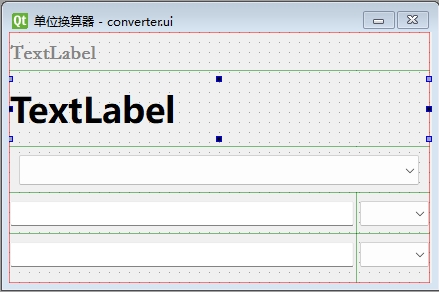
编译完成后的文件名为Ui_converter.py,将文件中的class Ui_Form(object)的类名更换为class Ui_converter(object) ,import导入。
from PySide6.QtWidgets import QApplication,QWidget,QMessageBox
from QT.Ui_converter import Ui_converter
设置下拉框内容
使用一个字典存储数据类型,为了计算简单,需要标注化存储数据,同时由于是字典存储,在addItems时需要使用字典的keys()获取键数据。设置一个绑定函数绑定信号与槽。
class MyWindow(QWidget,Ui_converter):
    def __init__(self):
        super().__init__()
        self.setupUi(self)

        # 字典存储数据类型,标准化处理
        self.lengthVar = {'厘米':1,'分米':10,'米':100,'千米':100000}
        self.weightVar = {'克':1,'斤':500,'千克':1000}
        self.TypeDict = {'长度':self.lengthVar,'质量':self.weightVar}
        self.oneInputComboBox.addItems(self.lengthVar.keys())
        self.twoInputComboBox.addItems(self.lengthVar.keys())
        self.dataTypeComboBox.addItems(self.TypeDict.keys())
        self.bind()
绑定与取消
在本次绑定函数中,EditLine使用的是editingFinished方法,这个方法会在EditLine失去焦点(例如回车键,鼠标点击别处)时发送信号,如果使用textChanged,用户在持续输出的状态下输入框会被更新,导致用户无法输入三位及以上的数字。
    def bind(self):
        self.oneInputEditLine.editingFinished.connect(self.NumberChanged)
        self.twoInputEditLine.editingFinished.connect(self.NumberChanged)
        self.dataTypeComboBox.currentTextChanged.connect(self.dataTypeChanged)
        self.oneInputComboBox.currentIndexChanged.connect(self.NumberChanged)
        self.twoInputComboBox.currentIndexChanged.connect(self.NumberChanged)
同时需要定义一个unbind函数用于取消绑定,在用户切换换算类型,如从长度切换到质量时,需要先取消所有绑定,删除内容,然后再绑定。unbind只需将bind中的connect改为disconnect即可。
self.oneInputEditLine.editingFinished.disconnect(self.NumberChanged)
计算与更新
在bind函数中,除了切换类型的dataTypeComboBox,其余的控件发射信号对应的槽均为NumberChanged,这个函数负责换算单位后更新Edit和Label,且保证用户输入的Edit不更新。
为了不更新用户的输入框,该函数需要判断是谁发来的信号,函数定义了三个变量currentOctal,anotherOctal和anotherSender方便更新Edit,currentOctal即为用户所输入行的ComboBox,anotherOctal即为另一个ComboBox,anotherSender为另一行的Edit,两个ComboBox用于在字典中确定键从而计算,由于用户输入的Edit不用更新,所以只设置另一个需要更新的Edit。
        currentSender = self.sender()
        if currentSender in (self.oneInputEditLine, self.oneInputComboBox):
            value = self.oneInputEditLine.text() or 0
            currentOctal = self.oneInputComboBox
            anotherOctal = self.twoInputComboBox
            anotherSender = self.twoInputEditLine
使用try,except对用户输入进行检查,如输入不正确则弹窗提示并且Return终止后续程序,检查无误后就可以开始进行单位换算了。
在计算时,首先将用户的输入转化为基本单位,由于基本单位是1,所以做乘法,之后由基本单位转到目标单位。
如果用户输入1分米,self.oneNumber将1分米转为100厘米,self.twoNumber再将100厘米转换为1米。
        self.oneNumber = self.oneNumber * self.TypeDict[currentType][currentOctal.currentText()]
        self.twoNumber = self.oneNumber / self.TypeDict[currentType][anotherOctal.currentText()]

        self.originDataLabel.setText(f'{value}{currentOctal.currentText()} =')
        self.transDataLabel.setText(f'{self.twoNumber}{anotherOctal.currentText()}')
        anotherSender.setText(str(self.twoNumber))
切换计算类型
使用dataTypeComboBox可以切换计算类型,此时调用dataTypeChanged函数。在切换时,需要先断开所有的信号与槽的绑定,清空Edit,之后更换两行combox的内容并重新绑定。
完整代码
以下是该实践项目的完整代码,这段代码实现了一个基础的单位换算功能,用户可自主输入数字和切换运算单位实现单位换算。
若要运行此代码,需要在 Qt Designer 中设计ui界面并且编译,在本代码的目录下创建一个子目录QT用于存储编译后的py文件,确保静态编译文件名和文件中的class名与代码对应,且每个控件的属性名与代码中相同。
from PySide6.QtWidgets import QApplication,QWidget,QMessageBox
from QT.Ui_converter import Ui_converter

class MyWindow(QWidget,Ui_converter):
    def __init__(self):
        super().__init__()
        self.setupUi(self)

        # 字典存储数据类型,标准化处理
        self.lengthVar = {'厘米':1,'分米':10,'米':100,'千米':100000}
        self.weightVar = {'克':1,'斤':500,'千克':1000}
        self.TypeDict = {'长度':self.lengthVar,'质量':self.weightVar}
        self.oneInputComboBox.addItems(self.lengthVar.keys())
        self.twoInputComboBox.addItems(self.lengthVar.keys())
        self.dataTypeComboBox.addItems(self.TypeDict.keys())
        self.bind()

    # 绑定函数
    def bind(self):
        self.oneInputEditLine.editingFinished.connect(self.NumberChanged)
        self.twoInputEditLine.editingFinished.connect(self.NumberChanged)
        self.dataTypeComboBox.currentTextChanged.connect(self.dataTypeChanged)
        self.oneInputComboBox.currentIndexChanged.connect(self.NumberChanged)
        self.twoInputComboBox.currentIndexChanged.connect(self.NumberChanged)

    # 取消绑定
    def unbind(self):
        self.oneInputEditLine.editingFinished.disconnect(self.NumberChanged)
        self.twoInputEditLine.editingFinished.disconnect(self.NumberChanged)
        self.dataTypeComboBox.currentTextChanged.disconnect(self.dataTypeChanged)
        self.oneInputComboBox.currentIndexChanged.disconnect(self.NumberChanged)
        self.twoInputComboBox.currentIndexChanged.disconnect(self.NumberChanged)

    # 计算更新Edit的内容
    def NumberChanged(self):
        # 获取当前计算类型,长度还是质量
        currentType = self.dataTypeComboBox.currentText()
        # 获取当前是谁发来的信号
        currentSender = self.sender()
        if currentSender in (self.oneInputEditLine, self.oneInputComboBox):
            value = self.oneInputEditLine.text() or 0
            currentOctal = self.oneInputComboBox
            anotherOctal = self.twoInputComboBox
            anotherSender = self.twoInputEditLine
        else:
            value = self.twoInputEditLine.text() or 0
            currentOctal = self.twoInputComboBox
            anotherOctal = self.oneInputComboBox
            anotherSender = self.oneInputEditLine

        # 计算数值然后放入每一个输入框
        try:
            self.oneNumber = float(value)
        except:
            QMessageBox.information(self,'提示','请输入正确的数字')
            return
        # one num = 50 * 10  two 500 / 1
        self.oneNumber = self.oneNumber * self.TypeDict[currentType][currentOctal.currentText()]
        self.twoNumber = self.oneNumber / self.TypeDict[currentType][anotherOctal.currentText()]

        self.originDataLabel.setText(f'{value}{currentOctal.currentText()} =')
        self.transDataLabel.setText(f'{self.twoNumber}{anotherOctal.currentText()}')
        anotherSender.setText(str(self.twoNumber))

    # 切换计算类型
    def dataTypeChanged(self,Type):
        self.unbind()
        self.oneInputComboBox.clear()
        self.twoInputComboBox.clear()
        self.oneInputEditLine.clear()
        self.twoInputEditLine.clear()
        if Type == '质量':
            self.oneInputComboBox.addItems(self.weightVar)
            self.twoInputComboBox.addItems(self.weightVar)
        else:
            self.oneInputComboBox.addItems(self.lengthVar)
            self.twoInputComboBox.addItems(self.lengthVar)
        self.bind()

if __name__ == '__main__':
    app = QApplication([])
    windows = MyWindow()
    windows.show()
    app.exec()
翻译器
实现一个翻译器,用户在左侧输入框输入内容,点击翻译按钮后会将内容翻译成目标语言输出在右侧,下方还会输出语句示例。翻译所用的API可以对接有道API,但在本次项目中,我使用本地部署ollama的gemma:2b语言模型提供翻译。
编译和导入
在Qt Designer中设计一个简单的进制转换界面,保存在项目名\QT\目录下的translate.ui,使用vscode插件,右键ui文件选择PYQT: Compile Form静态编译文件。

编译完成后的文件名为Ui_converter.py,将文件中的class Ui_Form(object)的类名更换为class Ui_translate(object) ,import导入。
from PySide6.QtWidgets import QApplication, QWidget
from QT.Ui_translate import Ui_translate
from ai import aitrain
翻译模块
翻译模块写在ai.py的aitrain类中,通过调用ollama并且使用prompt让gemma:2b对用户输入的语言进行翻译,该类接收三个参数forLanguage:输入语言类型,toLanguage:输出语言类型,text:输入语言内容。以下代码实现了一个非常简单的翻译效果。
import ollama

class aitrain:
    def translateWord(self, forLanguage, toLanguage, text ):

        forLag, toLag, content = forLanguage, toLanguage, text

        if forLag == '自动':
            forLag = ''

        prompt = f'''
        请将以下句子中的{forLag}内容翻译成{toLag},请注意,你只能输出需要翻译的句子的翻译后内容,不能输出其他内容。需要翻译的句子:{content}
        '''
        try:
            response = ollama.chat(model='gemma:2b', messages=[
            {
                'role': 'user',
                'content': prompt,
            },
        ])
            result = response['message']['content']
        except Exception as e:
        # 如果发生错误,记录错误信息
            result = f"Error: {e}"

        return result
完整代码
主界面的实现较为简单,实现基础的绑定后,调用ai.py里的翻译类进行翻译,返回内容直接填入两个Edit中,下面给出完整代码。
此处在文本框中添加了占位符self.plainTextEdit.setPlaceholderText() ,在文本框中无内容时,会出现灰色的提示内容。
from PySide6.QtWidgets import QApplication, QWidget
from QT.Ui_translate import Ui_translate
from ai import aitrain

class MyWindow(QWidget, Ui_translate):
    def __init__(self):
        super().__init__()
        self.setupUi(self)

        self.radioButton.setChecked(True)
        # 0:自动 , 1:汉语,2:英语, 3:日语
        self.fromLanguage = '自动'
        # 设置占位符
        self.plainTextEdit.setPlaceholderText('请输入需要翻译的内容')
        self.bind()

    def bind(self):
        self.pushButton.clicked.connect(self.translate)
        self.radioButton.clicked.connect(lambda:self.setFromlanguage('自动'))
        self.radioButton_2.clicked.connect(lambda:self.setFromlanguage('汉语'))
        self.radioButton_3.clicked.connect(lambda:self.setFromlanguage('英语'))
        self.comboBox.setCurrentText('英语')


    def translate(self):

        # 获取输入文本
        inputText = self.plainTextEdit.toPlainText()
        at = aitrain()
        result = at.translateWord(self.fromLanguage, self.comboBox.currentText(), inputText)

        # 将结果放入两个文本框
        self.plainTextEdit_2.setPlainText(result)
        self.plainTextEdit_3.setPlainText(result)

    def setFromlanguage(self,language):
        self.fromLanguage = language

    def setToLanguage(self,language):
        self.translate(language)
        print(language)


if __name__ == '__main__':
    app = QApplication()
    Window = MyWindow()
    Window.show()
    app.exec()
启动界面和图像模糊
本次制作一个启动界面和一个图像模糊的软件,软件可以导入图片,对图片进行高斯模糊然后保存,本次不涉及Qt Designer 的界面制作,所有界面均直接由代码完成。
导入
本次导入了 PIL 库用做图像处理,Image 用于打开图像,ImageFilter 用于图片模糊处理,ImageQt 用于将图片转换为可识别的Qt格式
from PySide6.QtWidgets import QApplication, QLabel, QWidget, QSlider, QVBoxLayout, QPushButton, QFileDialog, QGridLayout
from PySide6.QtCore import Qt, QTimer
from PySide6.QtGui import QFont, QPixmap
from PIL import ImageQt,ImageFilter, Image
启动界面
本次使用图片加文字的方式作为启动界面,运行程序时,会先打开启动界面,延时两秒然后进入主界面。设置无边框窗口并放入图片,同时加入了鼠标的拖动事件。
class LoadingWindow(QWidget):
    def __init__(self):
        super().__init__()
        # 设置窗口标志为无边框窗口
        self.setWindowFlag(Qt.WindowType.FramelessWindowHint)
        # 设置窗口熟悉为半透明
        self.setAttribute(Qt.WidgetAttribute.WA_TranslucentBackground)

        self.mousePressed = False # 鼠标是否被按下
        self.offsetX = 0 # 鼠标相对于窗口的X轴偏移量
        self.offsetY = 0 # 鼠标相对于窗口的Y轴偏移量
        # 创建QPixmap对象并加载指定路径图片
        self.pixmap = QPixmap("./log.png")
        # 获取QPixmap对象的尺寸
        self.size = self.pixmap.size()
        self.pic = QLabel(self)
        self.pic.setFixedSize(400,300)
        # 将加载的图片设置到QLabel控件中
        self.pic.setPixmap(self.pixmap)
        # 设置图片居中对齐
        self.pic.setAlignment(Qt.AlignmentFlag.AlignCenter)
        # 启用QLabel的缩放功能,使图片缩放适应QLabel
        self.pic.setScaledContents(True)

        self.label = QLabel('加载中...')
        self.label.setFont(QFont("微软雅黑",20))

        self.mainlayout = QGridLayout()
        self.mainlayout.addWidget(self.pic,0,0,3,3)
        self.mainlayout.addWidget(self.label,2,2)
        self.setLayout(self.mainlayout)
        # 定义单次计时器,延迟2000毫秒
        QTimer.singleShot(2000,self.openmainwindow)
主界面
主界面会提供了一个btn用于打开指定路径下的图片,同时有一个滑条来控制图片的模糊程度,另一个btn则可以将处理后的图进行保存。
完整代码
from PySide6.QtWidgets import QApplication, QLabel, QWidget, QSlider, QVBoxLayout, QPushButton, QFileDialog, QGridLayout
from PySide6.QtCore import Qt, QTimer
from PySide6.QtGui import QFont, QPixmap
from PIL import ImageQt,ImageFilter, Image


class LoadingWindow(QWidget):
    def __init__(self):
        super().__init__()

        self.setWindowFlag(Qt.WindowType.FramelessWindowHint)
        self.setAttribute(Qt.WidgetAttribute.WA_TranslucentBackground)

        self.mousePressed = False # 鼠标是否被按下
        self.offsetX = 0 # 鼠标相对于窗口的X轴偏移量
        self.offsetY = 0 # 鼠标相对于窗口的Y轴偏移量

        self.pixmap = QPixmap(".\log.png")
        self.size = self.pixmap.size()
        self.pic = QLabel(self)
        self.pic.setFixedSize(400,300)
        self.pic.setPixmap(self.pixmap)
        self.pic.setAlignment(Qt.AlignmentFlag.AlignCenter)
        self.pic.setScaledContents(True)

        self.label = QLabel('加载中...')
        self.label.setFont(QFont("微软雅黑",20))

        self.mainlayout = QGridLayout()
        self.mainlayout.addWidget(self.pic,0,0,3,3)
        self.mainlayout.addWidget(self.label,2,2)
        self.setLayout(self.mainlayout)
        QTimer.singleShot(2000,self.openmainwindow)

    def openmainwindow(self):
        self.close()
        self.mainlwindow = MyWindow()
        self.mainlwindow.show()

    # 鼠标事件,用户点击鼠标左键自动调用
    def mousePressEvent(self, event):
        if event.button() == Qt.LeftButton:
            self.mousePressed = True
            self.offsetX = event.globalPosition().x() - self.pos().x()
            self.offsetY = event.globalPosition().y() - self.pos().y()

    # 鼠标事件,用户移动鼠标自动调用
    def mouseMoveEvent(self, event):
        if self.mousePressed:
            x = event.globalPosition().x() - self.offsetX
            y = event.globalPosition().y() - self.offsetY
            self.move(x, y)

    # 鼠标事件,用户释放鼠标左键自动调用
    def mouseReleaseEvent(self, event):
        if event.button() == Qt.LeftButton:
            self.mousePressed = False

class MyWindow(QWidget):
    def __init__(self):
        super().__init__()
        self.resize(500, 400)

        self.imgshow = QLabel()
        # 设置图片显示区域大小(此设置不会缩放图片)
        self.imgshow.setFixedSize(480,380)

        self.btn = QPushButton('导入图片')
        self.btn.clicked.connect(self.getImg)

        self.btn2 = QPushButton('保存图片')
        self.btn2.clicked.connect(self.saveImg)

        self.slider = QSlider(Qt.Orientation.Horizontal)
        self.slider.setRange(0,100)
        self.slider.setTickPosition(QSlider.TickPosition.TicksBelow)
        # 设置刻度间隔
        self.slider.setTickInterval(10)
        self.slider.valueChanged.connect(self.resizeImage)

        self.mainlayout = QVBoxLayout()
        self.mainlayout.addWidget(self.btn)
        self.mainlayout.addWidget(self.btn2)
        self.mainlayout.addWidget(self.slider)
        self.mainlayout.addWidget(self.imgshow)
        self.setLayout(self.mainlayout)

        self.img = None
        self.pic = None

    def getImg(self):
        # 获取图像路径
        Image_Pach,_ = QFileDialog.getOpenFileName(self,'选择图像','','图像文件(*.png *.jpg *.imge)')
        if Image_Pach:
            self.img = Image.open(Image_Pach)
            # 调整图片大小
            self.resizeImage(self.slider.value())

    def saveImg(self):
        if self.pic:
            save_path, _ = QFileDialog.getSaveFileName(self,'保存图片','','图像文件(*.png *.jpg *.jpeg)')
            if save_path:
                self.pic.save(save_path)

    def resizeImage(self,value):
        if self.img:
            # 计算缩放比例
            w_ratio = self.imgshow.width() / self.img.width
            h_ratio = self.imgshow.height() / self.img.height
            scale_ratio = min(w_ratio, h_ratio)

            # 缩放图片,模糊图片
            new_size = (int(self.img.width * scale_ratio), int(self.img.height * scale_ratio))
            self.pic = self.img.filter(ImageFilter.GaussianBlur(value)).resize(new_size, Image.ANTIALIAS)

            # 显示图片
            self.imgshow.setPixmap(ImageQt.toqpixmap(self.pic))


if __name__ == '__main__':
    app = QApplication()
    Window = LoadingWindow()
    Window.show()
    app.exec()
动态控件
本次以一个实际的例子来讲解动态创建和操作控件:在用户购买商品时,创建一个产品选型的界面供用户选择合适的产品,假定用户需要选择的内容有:产品,配件,授权,服务。产品默认显示comboBox, 配件, 授权, 服务如有需要,需要点击Btn来创建一个comboBox供用户选择,在py designer中,设计界面如下:

本次使用了 PySide6-Fluent-Widgets 组件库,该组件库提供免费版本,但是无法在designer中直接显示组件效果。
在本次设计中, 展示的设计界面只是为了方便看到整体布局,实际上还需要更改部分ui类的内容,包括给按钮添加图标,删除选择按钮上的行等,同时建议手写ui代码便于理解,编写代码时注意对相同类型的控件命名最好有规范性, 这涉及到后面对动态控件的处理。
UI创建
ui文件将会实现整体ui界面,以下给出ui文件的代码以及给出运行效果:

在图ui中,你会发现 ‘添加XX’ 的按钮上方的行被删除,该行将在用户点击按钮时候才会显示,同样的,相关代码会被注释掉,以下为选型窗口ui ProductSelectionUI
from PySide6 import QtCore, QtGui, QtWidgets
import qfluentwidgets
from qfluentwidgets import CaptionLabel, HorizontalSeparator, PrimaryToolButton, PushButton, ScrollArea, SpinBox, FluentIcon

class Ui_ProductSelectionUI(object):
    def setupUi(self, Form):
        Form.setObjectName("Form")
        Form.resize(540, 739)
        self.verticalLayout_2 = QtWidgets.QVBoxLayout(Form)
        self.verticalLayout_2.setObjectName("verticalLayout_2")
        self.VerticalLayout = QtWidgets.QVBoxLayout()
        self.VerticalLayout.setObjectName("VerticalLayout")

        # 滚动窗口
        self.ScrollArea = ScrollArea(Form)
        self.ScrollArea.setWidgetResizable(True)
        self.ScrollArea.setObjectName("ScrollArea")

        # 滚动窗口的QWidget
        self.ScrollAreaWidgetContents = QtWidgets.QWidget()
        self.ScrollAreaWidgetContents.setGeometry(QtCore.QRect(0, 0, 518, 629))
        self.ScrollAreaWidgetContents.setObjectName("ScrollAreaWidgetContents")
        self.verticalLayout_4 = QtWidgets.QVBoxLayout(self.ScrollAreaWidgetContents)
        self.verticalLayout_4.setContentsMargins(0, 0, 0, 0)
        self.verticalLayout_4.setObjectName("verticalLayout_4")

        # 滚动窗口的整体垂直布局控件,滚动窗口的每一行都添加到此控件
        self.ScrollVerticalLayout = QtWidgets.QVBoxLayout()
        self.ScrollVerticalLayout.setObjectName("ScrollVerticalLayout")

        # 产品分割线的行布局容器
        self.ProductDividerHorizontalLayout = QtWidgets.QHBoxLayout()
        self.ProductDividerHorizontalLayout.setSizeConstraint(QtWidgets.QLayout.SetDefaultConstraint)
        self.ProductDividerHorizontalLayout.setObjectName("ProductDividerHorizontalLayout")

        # 产品分割线行的左分割线
        self.ProductLeftHorizontalSeparator = HorizontalSeparator(self.ScrollAreaWidgetContents)
        self.ProductLeftHorizontalSeparator.setMaximumSize(QtCore.QSize(5, 3))
        self.ProductLeftHorizontalSeparator.setObjectName("ProductLeftHorizontalSeparator")
        self.ProductDividerHorizontalLayout.addWidget(self.ProductLeftHorizontalSeparator)

        # 产品信息
        self.ProductCaptionLabel = CaptionLabel(self.ScrollAreaWidgetContents)

        # 控制QWidget大小策略的类
        sizePolicy = QtWidgets.QSizePolicy(QtWidgets.QSizePolicy.Preferred, QtWidgets.QSizePolicy.Preferred)
        sizePolicy.setHorizontalStretch(0)
        sizePolicy.setVerticalStretch(0)
        sizePolicy.setHeightForWidth(self.ProductCaptionLabel.sizePolicy().hasHeightForWidth())


        self.ProductCaptionLabel.setSizePolicy(sizePolicy)
        self.ProductCaptionLabel.setMinimumSize(QtCore.QSize(50, 20))
        self.ProductCaptionLabel.setMaximumSize(QtCore.QSize(200, 20))
        self.ProductCaptionLabel.setObjectName("ProductCaptionLabel")
        self.ProductDividerHorizontalLayout.addWidget(self.ProductCaptionLabel)

        # 产品分割线行的右分割线
        self.ProductRightHorizontalSeparator = HorizontalSeparator(self.ScrollAreaWidgetContents)
        self.ProductRightHorizontalSeparator.setMinimumSize(QtCore.QSize(5, 3))
        self.ProductRightHorizontalSeparator.setMaximumSize(QtCore.QSize(300, 3))
        self.ProductRightHorizontalSeparator.setObjectName("ProductRightHorizontalSeparator")
        self.ProductDividerHorizontalLayout.addWidget(self.ProductRightHorizontalSeparator)
        self.ScrollVerticalLayout.addLayout(self.ProductDividerHorizontalLayout)

        # 产品选择行的布局容器
        self.ProductSelectHorizontalLayout = QtWidgets.QHBoxLayout()
        self.ProductSelectHorizontalLayout.setObjectName("ProductSelectHorizontalLayout")
        spacerItem = QtWidgets.QSpacerItem(5, 20, QtWidgets.QSizePolicy.Maximum, QtWidgets.QSizePolicy.Minimum)
        self.ProductSelectHorizontalLayout.addItem(spacerItem)

        # 产品选择行的ComboBox
        self.ProductComboBox = qfluentwidgets.ComboBox(self.ScrollAreaWidgetContents)
        self.ProductComboBox.setObjectName("ProductComboBox")
        self.ProductComboBox.addItem("A产品")
        self.ProductComboBox.addItem("B产品")
        self.ProductComboBox.addItem("C产品")
        self.ProductComboBox.addItem("D产品")
        self.ProductComboBox.addItem("E产品")
        self.ProductSelectHorizontalLayout.addWidget(self.ProductComboBox)

        # 产品选择行的SpinBox
        self.ProductSpinBox = SpinBox(self.ScrollAreaWidgetContents)
        self.ProductSpinBox.setMaximumSize(QtCore.QSize(150, 33))
        self.ProductSpinBox.setMinimum(1)
        self.ProductSpinBox.setProperty("transparent", True)
        self.ProductSpinBox.setObjectName("ProductSpinBox")
        self.ProductSelectHorizontalLayout.addWidget(self.ProductSpinBox)

        # 产品选择行的确认按钮
        self.ProductConfirmPrimaryToolButton = PrimaryToolButton(self.ScrollAreaWidgetContents)
        self.ProductConfirmPrimaryToolButton.setIcon(FluentIcon.ACCEPT_MEDIUM)
        self.ProductConfirmPrimaryToolButton.setMaximumSize(QtCore.QSize(32, 30))
        self.ProductConfirmPrimaryToolButton.setObjectName("ProductConfirmPrimaryToolButton")
        self.ProductSelectHorizontalLayout.addWidget(self.ProductConfirmPrimaryToolButton)

        # 产品选择行的取消按钮
        self.ProductCancellationPrimaryToolButton = PrimaryToolButton(self.ScrollAreaWidgetContents)
        self.ProductCancellationPrimaryToolButton.setIcon(FluentIcon.CANCEL_MEDIUM)
        self.ProductCancellationPrimaryToolButton.setMaximumSize(QtCore.QSize(32, 30))
        self.ProductCancellationPrimaryToolButton.setObjectName("ProductCancellationPrimaryToolButton")
        self.ProductSelectHorizontalLayout.addWidget(self.ProductCancellationPrimaryToolButton)

        # 创建弹簧
        spacerItem1 = QtWidgets.QSpacerItem(5, 20, QtWidgets.QSizePolicy.Maximum, QtWidgets.QSizePolicy.Minimum)
        self.ProductSelectHorizontalLayout.addItem(spacerItem1)
        self.ScrollVerticalLayout.addLayout(self.ProductSelectHorizontalLayout)

        # 授权分割线行的布局容器
        self.AuthorisationDividerHorizontalLayout = QtWidgets.QHBoxLayout()
        self.AuthorisationDividerHorizontalLayout.setObjectName("AuthorisationDividerHorizontalLayout")

        # 授权分割线的左侧分割线
        self.AuthorisationLeftHorizontalSeparator = HorizontalSeparator(self.ScrollAreaWidgetContents)
        self.AuthorisationLeftHorizontalSeparator.setMaximumSize(QtCore.QSize(5, 3))
        self.AuthorisationLeftHorizontalSeparator.setObjectName("AuthorisationLeftHorizontalSeparator")
        self.AuthorisationDividerHorizontalLayout.addWidget(self.AuthorisationLeftHorizontalSeparator)

        # 授权分割线行的Label
        self.AuthorisationCaptionLabel = CaptionLabel(self.ScrollAreaWidgetContents)
        self.AuthorisationCaptionLabel.setMinimumSize(QtCore.QSize(50, 20))
        self.AuthorisationCaptionLabel.setMaximumSize(QtCore.QSize(200, 20))
        self.AuthorisationCaptionLabel.setObjectName("AuthorisationCaptionLabel")
        self.AuthorisationDividerHorizontalLayout.addWidget(self.AuthorisationCaptionLabel)

        # 授权分割线的右分割线
        self.AuthorisationRightHorizontalSeparator = HorizontalSeparator(self.ScrollAreaWidgetContents)
        self.AuthorisationRightHorizontalSeparator.setMinimumSize(QtCore.QSize(5, 3))
        self.AuthorisationRightHorizontalSeparator.setMaximumSize(QtCore.QSize(300, 3))
        self.AuthorisationRightHorizontalSeparator.setObjectName("AuthorisationRightHorizontalSeparator")
        self.AuthorisationDividerHorizontalLayout.addWidget(self.AuthorisationRightHorizontalSeparator)
        self.ScrollVerticalLayout.addLayout(self.AuthorisationDividerHorizontalLayout)

        # # 授权选择行的布局容器
        # self.AuthorisationSelectHorizontalLayout1 = QtWidgets.QHBoxLayout()
        # self.AuthorisationSelectHorizontalLayout1.setObjectName("AuthorisationSelectHorizontalLayout1")
        # spacerItem2 = QtWidgets.QSpacerItem(5, 20, QtWidgets.QSizePolicy.Maximum, QtWidgets.QSizePolicy.Minimum)
        # self.AuthorisationSelectHorizontalLayout1.addItem(spacerItem2)

        # # 授权选择行的ComboBox
        # self.AuthorisationComboBox1 = qfluentwidgets.ComboBox(self.ScrollAreaWidgetContents)
        # self.AuthorisationComboBox1.setObjectName("AuthorisationComboBox1")
        # self.AuthorisationComboBox1.addItem("模块A授权")
        # self.AuthorisationComboBox1.addItem("模块B授权")
        # self.AuthorisationComboBox1.addItem("模块C授权")
        # self.AuthorisationSelectHorizontalLayout1.addWidget(self.AuthorisationComboBox1)

        # # 授权选择行的SpinBox
        # self.AuthorisationSpinBox1 = SpinBox(self.ScrollAreaWidgetContents)
        # self.AuthorisationSpinBox1.setMaximumSize(QtCore.QSize(150, 33))
        # self.AuthorisationSpinBox1.setMinimum(1)
        # self.AuthorisationSpinBox1.setObjectName("AuthorisationSpinBox1")
        # self.AuthorisationSelectHorizontalLayout1.addWidget(self.AuthorisationSpinBox1)

        # # 授权选择行的确认按钮
        # self.AuthorisationConfirmPrimaryToolButton1 = PrimaryToolButton(self.ScrollAreaWidgetContents)
        # self.AuthorisationConfirmPrimaryToolButton1.setIcon(FluentIcon.ACCEPT_MEDIUM)
        # self.AuthorisationConfirmPrimaryToolButton1.setMaximumSize(QtCore.QSize(32, 30))
        # self.AuthorisationConfirmPrimaryToolButton1.setObjectName("AuthorisationConfirmPrimaryToolButton1")
        # self.AuthorisationSelectHorizontalLayout1.addWidget(self.AuthorisationConfirmPrimaryToolButton1)

        # # 授权选择行的取消按钮
        # self.AuthorisationCancellationPrimaryToolButton1 = PrimaryToolButton(self.ScrollAreaWidgetContents)
        # self.AuthorisationCancellationPrimaryToolButton1.setIcon(FluentIcon.CANCEL_MEDIUM)
        # self.AuthorisationCancellationPrimaryToolButton1.setMaximumSize(QtCore.QSize(32, 30))
        # self.AuthorisationCancellationPrimaryToolButton1.setObjectName("AuthorisationCancellationPrimaryToolButton1")
        # self.AuthorisationSelectHorizontalLayout1.addWidget(self.AuthorisationCancellationPrimaryToolButton1)
        # spacerItem3 = QtWidgets.QSpacerItem(5, 20, QtWidgets.QSizePolicy.Maximum, QtWidgets.QSizePolicy.Minimum)
        # self.AuthorisationSelectHorizontalLayout1.addItem(spacerItem3)
        # self.ScrollVerticalLayout.addLayout(self.AuthorisationSelectHorizontalLayout1)

        # 增加授权选择行 的按钮布局容器
        self.AuthorisationAddHorizontalLayout = QtWidgets.QHBoxLayout()
        self.AuthorisationAddHorizontalLayout.setObjectName("AuthorisationAddHorizontalLayout")
        spacerItem4 = QtWidgets.QSpacerItem(5, 20, QtWidgets.QSizePolicy.Maximum, QtWidgets.QSizePolicy.Minimum)
        self.AuthorisationAddHorizontalLayout.addItem(spacerItem4)

        # 增加授权选择行的按钮
        self.AuthorisationPushButton = PushButton(self.ScrollAreaWidgetContents)
        self.AuthorisationPushButton.setObjectName("AuthorisationPushButton")
        self.AuthorisationAddHorizontalLayout.addWidget(self.AuthorisationPushButton)
        spacerItem5 = QtWidgets.QSpacerItem(5, 20, QtWidgets.QSizePolicy.Maximum, QtWidgets.QSizePolicy.Minimum)
        self.AuthorisationAddHorizontalLayout.addItem(spacerItem5)
        self.ScrollVerticalLayout.addLayout(self.AuthorisationAddHorizontalLayout)

        # 配件分割线行的布局容器
        self.ModuleDividerHorizontalLayout = QtWidgets.QHBoxLayout()
        self.ModuleDividerHorizontalLayout.setObjectName("ModuleDividerHorizontalLayout")
        self.ModuleLeftHorizontalSeparator = HorizontalSeparator(self.ScrollAreaWidgetContents)
        self.ModuleLeftHorizontalSeparator.setMaximumSize(QtCore.QSize(5, 3))
        self.ModuleLeftHorizontalSeparator.setObjectName("ModuleLeftHorizontalSeparator")
        self.ModuleDividerHorizontalLayout.addWidget(self.ModuleLeftHorizontalSeparator)
        self.ModuleCaptionLabel = CaptionLabel(self.ScrollAreaWidgetContents)
        self.ModuleCaptionLabel.setMinimumSize(QtCore.QSize(50, 20))
        self.ModuleCaptionLabel.setMaximumSize(QtCore.QSize(200, 20))
        self.ModuleCaptionLabel.setObjectName("ModuleCaptionLabel")
        self.ModuleDividerHorizontalLayout.addWidget(self.ModuleCaptionLabel)
        self.ModuleRightHorizontalSeparator = HorizontalSeparator(self.ScrollAreaWidgetContents)
        sizePolicy = QtWidgets.QSizePolicy(QtWidgets.QSizePolicy.Preferred, QtWidgets.QSizePolicy.Maximum)
        sizePolicy.setHorizontalStretch(0)
        sizePolicy.setVerticalStretch(0)
        sizePolicy.setHeightForWidth(self.ModuleRightHorizontalSeparator.sizePolicy().hasHeightForWidth())
        self.ModuleRightHorizontalSeparator.setSizePolicy(sizePolicy)
        self.ModuleRightHorizontalSeparator.setMinimumSize(QtCore.QSize(5, 3))
        self.ModuleRightHorizontalSeparator.setMaximumSize(QtCore.QSize(300, 3))
        self.ModuleRightHorizontalSeparator.setObjectName("ModuleRightHorizontalSeparator")
        self.ModuleDividerHorizontalLayout.addWidget(self.ModuleRightHorizontalSeparator)
        self.ScrollVerticalLayout.addLayout(self.ModuleDividerHorizontalLayout)

        # # 配件选择行布局
        # self.ModuleSelectHorizontalLayout1 = QtWidgets.QHBoxLayout()
        # self.ModuleSelectHorizontalLayout1.setObjectName("ModuleSelectHorizontalLayout1")
        # spacerItem6 = QtWidgets.QSpacerItem(5, 20, QtWidgets.QSizePolicy.Maximum, QtWidgets.QSizePolicy.Minimum)
        # self.ModuleSelectHorizontalLayout1.addItem(spacerItem6)
        # self.ModuleComboBox1 = qfluentwidgets.ComboBox(self.ScrollAreaWidgetContents)
        # self.ModuleComboBox1.setObjectName("ModuleComboBox1")
        # self.ModuleComboBox1.addItem("A配件")
        # self.ModuleComboBox1.addItem("B配件")
        # self.ModuleComboBox1.addItem("C配件")
        # self.ModuleSelectHorizontalLayout1.addWidget(self.ModuleComboBox1)
        # self.ModuleSpinBox1 = SpinBox(self.ScrollAreaWidgetContents)
        # self.ModuleSpinBox1.setMaximumSize(QtCore.QSize(150, 33))
        # self.ModuleSpinBox1.setMinimum(1)
        # self.ModuleSpinBox1.setObjectName("ModuleSpinBox1")
        # self.ModuleSelectHorizontalLayout1.addWidget(self.ModuleSpinBox1)

        # # 配件选择行的确认按钮
        # self.ModuleConfirmPrimaryToolButton1 = PrimaryToolButton(self.ScrollAreaWidgetContents)
        # self.ModuleConfirmPrimaryToolButton1.setIcon(FluentIcon.ACCEPT_MEDIUM)
        # self.ModuleConfirmPrimaryToolButton1.setMaximumSize(QtCore.QSize(32, 30))
        # self.ModuleConfirmPrimaryToolButton1.setObjectName("ModuleConfirmPrimaryToolButton1")
        # self.ModuleSelectHorizontalLayout1.addWidget(self.ModuleConfirmPrimaryToolButton1)

        # # 配件选择行的取消按钮
        # self.ModuleCancellationPrimaryToolButton1 = PrimaryToolButton(self.ScrollAreaWidgetContents)
        # self.ModuleCancellationPrimaryToolButton1.setIcon(FluentIcon.CANCEL_MEDIUM)
        # self.ModuleCancellationPrimaryToolButton1.setMaximumSize(QtCore.QSize(32, 30))
        # self.ModuleCancellationPrimaryToolButton1.setObjectName("ModuleCancellationPrimaryToolButton1")
        # self.ModuleSelectHorizontalLayout1.addWidget(self.ModuleCancellationPrimaryToolButton1)
        # spacerItem7 = QtWidgets.QSpacerItem(5, 20, QtWidgets.QSizePolicy.Maximum, QtWidgets.QSizePolicy.Minimum)
        # self.ModuleSelectHorizontalLayout1.addItem(spacerItem7)
        # self.ScrollVerticalLayout.addLayout(self.ModuleSelectHorizontalLayout1)

        # 服务分割行
        self.ModuleAddHorizontalLayout = QtWidgets.QHBoxLayout()
        self.ModuleAddHorizontalLayout.setObjectName("ModuleAddHorizontalLayout")
        spacerItem8 = QtWidgets.QSpacerItem(5, 20, QtWidgets.QSizePolicy.Maximum, QtWidgets.QSizePolicy.Minimum)
        self.ModuleAddHorizontalLayout.addItem(spacerItem8)
        self.ModulePushButton = PushButton(self.ScrollAreaWidgetContents)
        self.ModulePushButton.setObjectName("ModulePushButton")
        self.ModuleAddHorizontalLayout.addWidget(self.ModulePushButton)
        spacerItem9 = QtWidgets.QSpacerItem(5, 20, QtWidgets.QSizePolicy.Maximum, QtWidgets.QSizePolicy.Minimum)
        self.ModuleAddHorizontalLayout.addItem(spacerItem9)
        self.ScrollVerticalLayout.addLayout(self.ModuleAddHorizontalLayout)
        self.ServiceDividerHorizontalLayout = QtWidgets.QHBoxLayout()
        self.ServiceDividerHorizontalLayout.setObjectName("ServiceDividerHorizontalLayout")
        self.ServiceLeftHorizontalSeparator = HorizontalSeparator(self.ScrollAreaWidgetContents)
        self.ServiceLeftHorizontalSeparator.setMaximumSize(QtCore.QSize(5, 3))
        self.ServiceLeftHorizontalSeparator.setObjectName("ServiceLeftHorizontalSeparator")
        self.ServiceDividerHorizontalLayout.addWidget(self.ServiceLeftHorizontalSeparator)


        self.ServiceCaptionLabel = CaptionLabel(self.ScrollAreaWidgetContents)
        sizePolicy = QtWidgets.QSizePolicy(QtWidgets.QSizePolicy.Preferred, QtWidgets.QSizePolicy.Preferred)
        sizePolicy.setHorizontalStretch(0)
        sizePolicy.setVerticalStretch(0)
        sizePolicy.setHeightForWidth(self.ServiceCaptionLabel.sizePolicy().hasHeightForWidth())
        self.ServiceCaptionLabel.setSizePolicy(sizePolicy)
        self.ServiceCaptionLabel.setMinimumSize(QtCore.QSize(50, 20))
        self.ServiceCaptionLabel.setMaximumSize(QtCore.QSize(200, 20))
        self.ServiceCaptionLabel.setObjectName("ServiceCaptionLabel")
        self.ServiceDividerHorizontalLayout.addWidget(self.ServiceCaptionLabel)
        self.ServiceRightHorizontalSeparator = HorizontalSeparator(self.ScrollAreaWidgetContents)
        sizePolicy = QtWidgets.QSizePolicy(QtWidgets.QSizePolicy.Preferred, QtWidgets.QSizePolicy.Preferred)
        sizePolicy.setHorizontalStretch(0)
        sizePolicy.setVerticalStretch(0)
        sizePolicy.setHeightForWidth(self.ServiceRightHorizontalSeparator.sizePolicy().hasHeightForWidth())
        self.ServiceRightHorizontalSeparator.setSizePolicy(sizePolicy)
        self.ServiceRightHorizontalSeparator.setMinimumSize(QtCore.QSize(5, 3))
        self.ServiceRightHorizontalSeparator.setMaximumSize(QtCore.QSize(300, 3))
        self.ServiceRightHorizontalSeparator.setObjectName("ServiceRightHorizontalSeparator")
        self.ServiceDividerHorizontalLayout.addWidget(self.ServiceRightHorizontalSeparator)
        self.ScrollVerticalLayout.addLayout(self.ServiceDividerHorizontalLayout)

        # # 服务选择行布局
        # self.ServiceSelectHorizontalLayout1 = QtWidgets.QHBoxLayout()
        # self.ServiceSelectHorizontalLayout1.setObjectName("ServiceSelectHorizontalLayout1")
        # spacerItem10 = QtWidgets.QSpacerItem(5, 20, QtWidgets.QSizePolicy.Maximum, QtWidgets.QSizePolicy.Minimum)
        # self.ServiceSelectHorizontalLayout1.addItem(spacerItem10)
        # self.ServiceComboBox1 = qfluentwidgets.ComboBox(self.ScrollAreaWidgetContents)
        # self.ServiceComboBox1.setObjectName("ServiceComboBox1")
        # self.ServiceComboBox1.addItem("A服务")
        # self.ServiceComboBox1.addItem("B服务")
        # self.ServiceSelectHorizontalLayout1.addWidget(self.ServiceComboBox1)
        # self.ServiceSpinBox1 = SpinBox(self.ScrollAreaWidgetContents)
        # self.ServiceSpinBox1.setMaximumSize(QtCore.QSize(150, 33))
        # self.ServiceSpinBox1.setMinimum(1)
        # self.ServiceSpinBox1.setObjectName("ServiceSpinBox1")
        # self.ServiceSelectHorizontalLayout1.addWidget(self.ServiceSpinBox1)

        # # 服务选择行的确认按钮
        # self.ServiceConfirmPrimaryToolButton1 = PrimaryToolButton(self.ScrollAreaWidgetContents)
        # self.ServiceConfirmPrimaryToolButton1.setIcon(FluentIcon.ACCEPT_MEDIUM)
        # self.ServiceConfirmPrimaryToolButton1.setMaximumSize(QtCore.QSize(32, 30))
        # self.ServiceConfirmPrimaryToolButton1.setObjectName("ServiceConfirmPrimaryToolButton1")
        # self.ServiceSelectHorizontalLayout1.addWidget(self.ServiceConfirmPrimaryToolButton1)

        # # 服务选择行的取消按钮
        # self.ServiceCancellationPrimaryToolButton1 = PrimaryToolButton(self.ScrollAreaWidgetContents)
        # self.ServiceCancellationPrimaryToolButton1.setIcon(FluentIcon.CANCEL_MEDIUM)
        # self.ServiceCancellationPrimaryToolButton1.setMaximumSize(QtCore.QSize(32, 30))
        # self.ServiceCancellationPrimaryToolButton1.setObjectName("ServiceCancellationPrimaryToolButton1")
        # self.ServiceSelectHorizontalLayout1.addWidget(self.ServiceCancellationPrimaryToolButton1)
        # spacerItem11 = QtWidgets.QSpacerItem(5, 20, QtWidgets.QSizePolicy.Maximum, QtWidgets.QSizePolicy.Minimum)
        # self.ServiceSelectHorizontalLayout1.addItem(spacerItem11)
        # self.ScrollVerticalLayout.addLayout(self.ServiceSelectHorizontalLayout1)

        self.ServiceAddHorizontalLayout = QtWidgets.QHBoxLayout()
        self.ServiceAddHorizontalLayout.setObjectName("ServiceAddHorizontalLayout")
        spacerItem12 = QtWidgets.QSpacerItem(5, 20, QtWidgets.QSizePolicy.Maximum, QtWidgets.QSizePolicy.Minimum)
        self.ServiceAddHorizontalLayout.addItem(spacerItem12)
        self.ServicePushButton = PushButton(self.ScrollAreaWidgetContents)
        self.ServicePushButton.setObjectName("ServicePushButton")
        self.ServiceAddHorizontalLayout.addWidget(self.ServicePushButton)
        spacerItem13 = QtWidgets.QSpacerItem(5, 20, QtWidgets.QSizePolicy.Maximum, QtWidgets.QSizePolicy.Minimum)
        self.ServiceAddHorizontalLayout.addItem(spacerItem13)
        self.ScrollVerticalLayout.addLayout(self.ServiceAddHorizontalLayout)

        # 滚动框最下方的弹簧
        spacerItem14 = QtWidgets.QSpacerItem(20, 500, QtWidgets.QSizePolicy.Minimum, QtWidgets.QSizePolicy.Maximum)
        self.ScrollVerticalLayout.addItem(spacerItem14)
        self.verticalLayout_4.addLayout(self.ScrollVerticalLayout)
        self.ScrollArea.setWidget(self.ScrollAreaWidgetContents)
        self.VerticalLayout.addWidget(self.ScrollArea)
        spacerItem15 = QtWidgets.QSpacerItem(20, 20, QtWidgets.QSizePolicy.Minimum, QtWidgets.QSizePolicy.Minimum)
        self.VerticalLayout.addItem(spacerItem15)
        self.LectotypeHorizontalLayout = QtWidgets.QHBoxLayout()
        self.LectotypeHorizontalLayout.setContentsMargins(-1, 0, -1, -1)
        self.LectotypeHorizontalLayout.setObjectName("LectotypeHorizontalLayout")
        spacerItem16 = QtWidgets.QSpacerItem(40, 20, QtWidgets.QSizePolicy.Expanding, QtWidgets.QSizePolicy.Minimum)
        self.LectotypeHorizontalLayout.addItem(spacerItem16)
        self.LectotypeConfirmPushButton = PushButton(Form)
        sizePolicy = QtWidgets.QSizePolicy(QtWidgets.QSizePolicy.Minimum, QtWidgets.QSizePolicy.Fixed)
        sizePolicy.setHorizontalStretch(0)
        sizePolicy.setVerticalStretch(0)
        sizePolicy.setHeightForWidth(self.LectotypeConfirmPushButton.sizePolicy().hasHeightForWidth())
        self.LectotypeConfirmPushButton.setSizePolicy(sizePolicy)
        self.LectotypeConfirmPushButton.setMinimumSize(QtCore.QSize(80, 0))
        self.LectotypeConfirmPushButton.setObjectName("LectotypeConfirmPushButton")
        self.LectotypeHorizontalLayout.addWidget(self.LectotypeConfirmPushButton)
        spacerItem17 = QtWidgets.QSpacerItem(40, 20, QtWidgets.QSizePolicy.Expanding, QtWidgets.QSizePolicy.Minimum)
        self.LectotypeHorizontalLayout.addItem(spacerItem17)
        self.LectotypeCancellationPushButton = PushButton(Form)
        self.LectotypeCancellationPushButton.setMinimumSize(QtCore.QSize(80, 0))
        self.LectotypeCancellationPushButton.setObjectName("LectotypeCancellationPushButton")
        self.LectotypeHorizontalLayout.addWidget(self.LectotypeCancellationPushButton)
        spacerItem18 = QtWidgets.QSpacerItem(40, 20, QtWidgets.QSizePolicy.Expanding, QtWidgets.QSizePolicy.Minimum)
        self.LectotypeHorizontalLayout.addItem(spacerItem18)
        self.VerticalLayout.addLayout(self.LectotypeHorizontalLayout)
        spacerItem19 = QtWidgets.QSpacerItem(20, 15, QtWidgets.QSizePolicy.Minimum, QtWidgets.QSizePolicy.Minimum)
        self.VerticalLayout.addItem(spacerItem19)
        self.verticalLayout_2.addLayout(self.VerticalLayout)

        self.retranslateUi(Form)
        QtCore.QMetaObject.connectSlotsByName(Form)

    def retranslateUi(self, Form):
        _translate = QtCore.QCoreApplication.translate
        Form.setWindowTitle(_translate("Form", "Form"))
        self.ProductCaptionLabel.setText(_translate("Form", "产品"))
        self.ProductComboBox.setText(_translate("Form", "A产品"))
        self.ProductComboBox.setProperty("items_", _translate("Form", "A产品\n"
"B产品\n"
"C产品\n"
"D产品\n"
"E产品"))
        self.AuthorisationCaptionLabel.setText(_translate("Form", "授权"))
#         self.AuthorisationComboBox1.setText(_translate("Form", "模块A授权"))
#         self.AuthorisationComboBox1.setProperty("items_", _translate("Form", "模块A授权\n"
# "模块B授权\n"
# "模块C授权"))
        self.AuthorisationPushButton.setText(_translate("Form", "添加授权"))
        self.ModuleCaptionLabel.setText(_translate("Form", "配件"))
#         self.ModuleComboBox1.setText(_translate("Form", "A配件"))
#         self.ModuleComboBox1.setProperty("items_", _translate("Form", "A配件\n"
# "B配件\n"
# "C配件"))
        self.ModulePushButton.setText(_translate("Form", "添加配件"))
        self.ServiceCaptionLabel.setText(_translate("Form", "服务"))
#         self.ServiceComboBox1.setText(_translate("Form", "A服务"))
#         self.ServiceComboBox1.setProperty("items_", _translate("Form", "A服务\n"
# "B服务"))
        self.ServicePushButton.setText(_translate("Form", "添加服务"))
        self.LectotypeConfirmPushButton.setText(_translate("Form", "确认"))
        self.LectotypeCancellationPushButton.setText(_translate("Form", "取消"))
创建动态控件
我们期望的效果是当用户点击 ‘添加XX’ 的按钮时,能够在按钮上方添加一行,新增的行包含comboBox, spinBox以及两个按钮,我们定义了一个函数 AddSelectHorizontalLayout 作为’添加XX’ 按钮的槽函数,另外我们需要定义几个全局变量:
- self.AuthorisationType 列表,Authorisation的comboBox下拉框每一项的内容
- self.AuthorisationNum = 4 按钮 ‘添加授权’ 的布局所在行
- self.ModuleType 列表,Module的comboBox下拉框每一项的内容
- self.ModuleNum = 6 按钮 ‘添加配件’ 的布局所在行
- self.ServiceType 列表,Service的comboBox下拉框每一项的内容
- self.ServiceNum = 8 按钮 ‘添加服务’ 的布局所在行
- self.ButtonCounter int, 用来记录创建了多少行,这个数字将会用于命名创建的控件
- self.DynamicControlList list,存储创建的控件
现在,让我们实现动态创建功能:
    def AddSelectHorizontalLayout(self, Control):

        # 定义控件类型与对应的数据列表
        ControlMap = {
            'Authorisation': (self.AuthorisationType, self.AuthorisationNum),
            'Module': (self.ModuleType, self.ModuleNum),
            'Service': (self.ServiceType, self.ServiceNum),
        }

        # 获取控件类型对应的数据列表和行索引
        DataList, InsertIndex = ControlMap[Control]
        # 调整为实际插入位置
        InsertIndex -= 1

        # 更新索引
        if Control == 'Authorisation':
            # 更新Add按钮的全局变量
            self.AuthorisationNum += 1
            self.ModuleNum += 1
            self.ServiceNum += 1
        elif Control == 'Module':
            self.ModuleNum += 1
            self.ServiceNum += 1
        elif Control == 'Service':
            self.ServiceNum += 1

        # 创建控件,为控件设置唯一的objectName
        comboBox = ComboBox(self.ScrollAreaWidgetContents)
        comboBox.setObjectName(f"ComboBox{self.ButtonCounter}")
        # 将list写入ComboBox
        for type in DataList:
            comboBox.addItem(type)
        # 授权选择行的SpinBox
        spinBox = SpinBox(self.ScrollAreaWidgetContents)
        spinBox.setMaximumSize(QtCore.QSize(150, 33))
        spinBox.setMinimum(1)
        spinBox.setObjectName(f"AuthorisationSpinBox{self.ButtonCounter}")

        ButtonLeft = PrimaryToolButton(self.ScrollAreaWidgetContents)
        ButtonLeft.setIcon(FluentIcon.ACCEPT_MEDIUM)
        ButtonLeft.setMaximumSize(QtCore.QSize(32, 30))
        ButtonLeft.setObjectName(f"ConfirmButton{self.ButtonCounter}")

        ButtonRight = PrimaryToolButton(self.ScrollAreaWidgetContents)
        ButtonRight.setIcon(FluentIcon.CANCEL_MEDIUM)
        ButtonRight.setMaximumSize(QtCore.QSize(32, 30))
        ButtonRight.setObjectName(f"CancellationButton{self.ButtonCounter}")

        # 创建两个弹簧
        SpacerItemLeft = QtWidgets.QSpacerItem(5, 20, QtWidgets.QSizePolicy.Maximum, QtWidgets.QSizePolicy.Minimum)
        SpacerItemRight = QtWidgets.QSpacerItem(5, 20, QtWidgets.QSizePolicy.Maximum, QtWidgets.QSizePolicy.Minimum)

        # 绑定按钮事件信号和槽
        ButtonLeft.clicked.connect(self.ClickPrimaryToolButton)
        ButtonRight.clicked.connect(self.ClickPrimaryToolButton)

        # 创建布局并添加到滚动框
        self.HorizontalLayout = QHBoxLayout()
        self.HorizontalLayout.setObjectName(f"AddHorizontalLayout{self.ButtonCounter}")
        self.HorizontalLayout.addItem(SpacerItemLeft)
        self.HorizontalLayout.addWidget(comboBox)
        self.HorizontalLayout.addWidget(spinBox)
        self.HorizontalLayout.addWidget(ButtonLeft)
        self.HorizontalLayout.addWidget(ButtonRight)
        self.HorizontalLayout.addItem(SpacerItemRight)
        self.ScrollVerticalLayout.insertLayout(InsertIndex,self.HorizontalLayout)

        # 将新的控件添加到列表中,以便之后访问
        typeList = [self.ButtonCounter, comboBox, spinBox, ButtonLeft, ButtonRight]
        self.DynamicControlList.append(typeList)

        # 更新按钮的序号
        self.ButtonCounter += 1
我们接收一个参数 Control 这是一个字符串类型参数,我们在发送信号是传入,用来确认是哪一个按钮发送的信号,进而确定需要创建的控件索引 InsertIndex 同时我们使用列表存放了所有动态控件,用于对动态创建控件的访问。
访问动态控件
接下来,我们需要实现:当用户点击确认按钮时,锁定comboBox和spinBox,在创建控件时,我们已经绑定了点击按钮触发的槽函数 ClickPrimaryToolButton 这个函数将接收信号,首先判断信号是谁发出的,然后从存放了所有动态控件的二维列表 self.DynamicControlList 中获取到send()信号所在的列表,并操作列表的其余控件:
    def ClickPrimaryToolButton(self):
        sender = self.sender()
        SenderObjectName = sender.objectName()

        # 根据sender确认设置二维列表的第二个索引
        OneDimensionalIndex = 0
        if 'ComboBox' in SenderObjectName:
            OneDimensionalIndex = 1
        elif 'SpinBox' in SenderObjectName:
            OneDimensionalIndex = 2
        elif 'Confirm' in SenderObjectName:
            OneDimensionalIndex = 3
        elif 'Cancellation' in SenderObjectName:
            OneDimensionalIndex = 4

        # 获取sender所在行的全部控件,即获取二维列表第一索引index
        for index in range(len(self.DynamicControlList)):
            if sender == self.DynamicControlList[index][OneDimensionalIndex]:
                if OneDimensionalIndex == 3:
                    self.DynamicControlList[index][1].setEnabled(False)
                    self.DynamicControlList[index][2].setEnabled(False)
                    self.DynamicControlList[index][3].hide()
                elif OneDimensionalIndex == 4:
                    # 只在确认按钮被隐藏时执行
                    if self.DynamicControlList[index][3].isHidden():
                        self.DynamicControlList[index][1].setEnabled(True)
                        self.DynamicControlList[index][2].setEnabled(True)
                        self.DynamicControlList[index][3].show()
输出信息
在用户选择完毕之后,我们希望用户点击 ‘确认’ 按钮时,我们能够获取到用户所选择的所有信息,我们将遍历 self.DynamicControlList 将每一行被锁定的内容输出,当然在正常形况下既视不锁定的行也应该输出,在代码段直接去掉判断语句即可:
    def ConfirmAllControl(self):
        # 创建一个字典来存储ComboBox的当前文本和SpinBox的值
        ConfirmControlMap = {}

        for AllControlList in self.DynamicControlList:
            # 只输出被锁定的行
            if not AllControlList[3].isVisible():
                # 将当前Data作为键,SpinBox的值作为值存储在字典中
                ConfirmControlMap[AllControlList[1].currentText()] = AllControlList[2].value()

        # 打印字典内容
        print("===ConfirmControlMap:===")
        for data, value in ConfirmControlMap.items():
            print(f"{data}: {value}")
删除动态控件
如果需要删除创建的动态控件,除了需要删除控件所在的布局,还需要删除控件列表中的元素,并更新三个ADDButton的索引,因此,我们需要在 self.DynamicControlList 中多存入两个数据:动态控件的布局,以及动态控件的所属,布局将会用于删除操作,而所属方便确定布局具体由哪个ADDBtn创建,从而便于更新ADDBtn的索引。
因此我们需要更改 DynamicControlList 的添加代码,同时我们也需要继续写按钮点击事件的处理函数,在点击取消的时候,判断该行其余控件是否被锁定,是则解锁,否则直接删除该行,更新索引,删除控件列表,更多改动请直接参考完成代码。
# 创建布局并添加到滚动框
HorizontalLayout = QHBoxLayout()
HorizontalLayout.setObjectName(f"AddHorizontalLayout{self.ButtonCounter}")
HorizontalLayout.addItem(SpacerItemLeft)
HorizontalLayout.addWidget(comboBox)
HorizontalLayout.addWidget(spinBox)
HorizontalLayout.addWidget(ButtonLeft)
HorizontalLayout.addWidget(ButtonRight)
HorizontalLayout.addItem(SpacerItemRight)
self.ScrollVerticalLayout.insertLayout(InsertIndex,HorizontalLayout)

# 将新的控件添加到列表中,以便之后访问
typeList = [self.ButtonCounter, comboBox, spinBox, ButtonLeft, ButtonRight, HorizontalLayout, Control]
self.DynamicControlList.append(typeList)
完整代码
from PySide6.QtWidgets import QApplication, QWidget,QHBoxLayout
from PySide6 import QtCore,QtWidgets
from ProductSelectionUI import Ui_ProductSelectionUI
from qfluentwidgets import ComboBox, PrimaryToolButton, SpinBox, FluentIcon

class ChoseTpyeWindow(QWidget, Ui_ProductSelectionUI):
    def __init__(self, *args, **kwargs):
        super().__init__(*args, **kwargs)
        self.setupUi(self)

        # 变量设置
        # 设置ComboBox内容列表
        self.AuthorisationType = ['模块A授权', '模块B授权', '模块C授权']
        self.ModuleType = ['A配件', 'B配件', 'C配件']
        self.ServiceType = ['A服务', 'B服务']

        # 按钮的objectName计数器
        self.ButtonCounter = 0
        # 存放所有的授权类动态控件,列表格式:[[ButtonCounter, comboBox, spinBox, ButtonLeft ,ButtonRight, 布局,所属类],[...]]
        self.DynamicControlList = []
        # 将第一行的产品控件添加进去
        ProductControlList = []
        ProductControlList.append('Product')
        ProductControlList.append(self.ProductComboBox)
        ProductControlList.append(self.ProductSpinBox)
        ProductControlList.append(self.ProductConfirmPrimaryToolButton)
        ProductControlList.append(self.ProductCancellationPrimaryToolButton)
        ProductControlList.append(self.ProductSelectHorizontalLayout)
        ProductControlList.append('Product')
        self.DynamicControlList.append(ProductControlList)

        # 按钮的行索引,  '添加授权':AuthorisationNum, '添加配件':ModuleNum, '添加服务':ServiceNum
        self.AuthorisationNum = 4
        self.ModuleNum = 6
        self.ServiceNum = 8

        self.bind()

    def bind(self):
        # Add按钮的绑定事件
        self.AuthorisationPushButton.clicked.connect(lambda:self.AddSelectHorizontalLayout(Control='Authorisation'))
        self.ModulePushButton.clicked.connect(lambda:self.AddSelectHorizontalLayout(Control='Module'))
        self.ServicePushButton.clicked.connect(lambda:self.AddSelectHorizontalLayout(Control='Service'))

        # 产品行的两个按钮
        self.ProductConfirmPrimaryToolButton.clicked.connect(self.ClickPrimaryToolButton)
        self.ProductCancellationPrimaryToolButton.clicked.connect(self.ClickPrimaryToolButton)

        # 最后的确认和取消按钮
        self.LectotypeConfirmPushButton.clicked.connect(self.ConfirmAllControl)
        self.LectotypeCancellationPushButton.clicked.connect(self.close)

    # 增加产品选择行的槽函数,{Control:指定控件,Type:指定ComboBox的list}
    def AddSelectHorizontalLayout(self, Control):

        # 定义控件类型与对应的数据列表
        ControlMap = {
            'Authorisation': (self.AuthorisationType, self.AuthorisationNum),
            'Module': (self.ModuleType, self.ModuleNum),
            'Service': (self.ServiceType, self.ServiceNum),
        }

        # 获取控件类型对应的数据列表和行索引
        DataList, InsertIndex = ControlMap[Control]
        # 调整为实际插入位置
        InsertIndex -= 1

        # 更新索引
        if Control == 'Authorisation':
            # 更新Add按钮的全局变量
            self.AuthorisationNum += 1
            self.ModuleNum += 1
            self.ServiceNum += 1
        elif Control == 'Module':
            self.ModuleNum += 1
            self.ServiceNum += 1
        elif Control == 'Service':
            self.ServiceNum += 1

        # 创建控件,为控件设置唯一的objectName
        comboBox = ComboBox(self.ScrollAreaWidgetContents)
        comboBox.setObjectName(f"ComboBox{self.ButtonCounter}")
        # 将list写入ComboBox
        for type in DataList:
            comboBox.addItem(type)
        # 授权选择行的SpinBox
        spinBox = SpinBox(self.ScrollAreaWidgetContents)
        spinBox.setMaximumSize(QtCore.QSize(150, 33))
        spinBox.setMinimum(1)
        spinBox.setObjectName(f"AuthorisationSpinBox{self.ButtonCounter}")

        ButtonLeft = PrimaryToolButton(self.ScrollAreaWidgetContents)
        ButtonLeft.setIcon(FluentIcon.ACCEPT_MEDIUM)
        ButtonLeft.setMaximumSize(QtCore.QSize(32, 30))
        ButtonLeft.setObjectName(f"ConfirmButton{self.ButtonCounter}")

        ButtonRight = PrimaryToolButton(self.ScrollAreaWidgetContents)
        ButtonRight.setIcon(FluentIcon.CANCEL_MEDIUM)
        ButtonRight.setMaximumSize(QtCore.QSize(32, 30))
        ButtonRight.setObjectName(f"CancellationButton{self.ButtonCounter}")

        # 创建两个弹簧
        SpacerItemLeft = QtWidgets.QSpacerItem(5, 20, QtWidgets.QSizePolicy.Maximum, QtWidgets.QSizePolicy.Minimum)
        SpacerItemRight = QtWidgets.QSpacerItem(5, 20, QtWidgets.QSizePolicy.Maximum, QtWidgets.QSizePolicy.Minimum)

        # 绑定按钮事件信号和槽
        ButtonLeft.clicked.connect(self.ClickPrimaryToolButton)
        ButtonRight.clicked.connect(self.ClickPrimaryToolButton)

        # 创建布局并添加到滚动框
        HorizontalLayout = QHBoxLayout()
        HorizontalLayout.setObjectName(f"AddHorizontalLayout{self.ButtonCounter}")
        HorizontalLayout.addItem(SpacerItemLeft)
        HorizontalLayout.addWidget(comboBox)
        HorizontalLayout.addWidget(spinBox)
        HorizontalLayout.addWidget(ButtonLeft)
        HorizontalLayout.addWidget(ButtonRight)
        HorizontalLayout.addItem(SpacerItemRight)
        self.ScrollVerticalLayout.insertLayout(InsertIndex,HorizontalLayout)

        # 将新的控件添加到列表中,以便之后访问
        typeList = [self.ButtonCounter, comboBox, spinBox, ButtonLeft, ButtonRight, HorizontalLayout, Control]
        self.DynamicControlList.append(typeList)

        # 更新按钮的序号
        self.ButtonCounter += 1


    # 按钮点击事件处理函数
    def ClickPrimaryToolButton(self):
        sender = self.sender()
        SenderObjectName = sender.objectName()

        # 根据sender确认设置二维列表的第二个索引
        OneDimensionalIndex = 0
        if 'ComboBox' in SenderObjectName:
            OneDimensionalIndex = 1
        elif 'SpinBox' in SenderObjectName:
            OneDimensionalIndex = 2
        elif 'Confirm' in SenderObjectName:
            OneDimensionalIndex = 3
        elif 'Cancellation' in SenderObjectName:
            OneDimensionalIndex = 4

        # 获取sender所在行的全部控件,即获取二维列表第一索引index
        for index in range(len(self.DynamicControlList)):
            if sender == self.DynamicControlList[index][OneDimensionalIndex]:
                if OneDimensionalIndex == 3:
                    self.DynamicControlList[index][1].setEnabled(False)
                    self.DynamicControlList[index][2].setEnabled(False)
                    self.DynamicControlList[index][3].hide()
                elif OneDimensionalIndex == 4:
                    # 只在确认按钮被隐藏时执行
                    if self.DynamicControlList[index][3].isHidden():
                        self.DynamicControlList[index][1].setEnabled(True)
                        self.DynamicControlList[index][2].setEnabled(True)
                        self.DynamicControlList[index][3].show()
                    else:
                        Layout = self.DynamicControlList[index][5]
                        parentLayout = self.ScrollVerticalLayout

                        Layout_Control = self.DynamicControlList[index][6]
                    # 更新索引
                    if Layout_Control == 'Authorisation':
                        # 更新Add按钮的全局变量
                        self.AuthorisationNum -= 1
                        self.ModuleNum -= 1
                        self.ServiceNum -= 1
                    elif Layout_Control == 'Module':
                        self.ModuleNum -= 1
                        self.ServiceNum -= 1
                    elif Layout_Control == 'Service':
                        self.ServiceNum -= 1

                    # 删除布局
                    self.delete_layout(parentLayout, Layout)

                    # 删除列表中的对应元素
                    del self.DynamicControlList[index]
                    break  # 删除元素后跳出循环

    # 按钮删除事件,传递父控件和需移除控件
    def delete_layout(self,parentLayout,Layout):
        # 从父布局中移除
        parentLayout.removeItem(Layout)

        # 删除布局中的每个控件
        for i in reversed(range(Layout.count())):
            widget = Layout.itemAt(i).widget()
            if widget is not None:
                # 如果 widget 存在,从水平布局中移除并删除它
                Layout.removeWidget(widget)
                widget.deleteLater()  # 使用 deleteLater 来安全地删除控件

        # 删除水平布局本身,立即释放资源
        Layout.deleteLater()

    # 用于打印所有ComboBox的当前文本
    def ConfirmAllControl(self):
        # 创建一个字典来存储ComboBox的当前文本和SpinBox的值
        ConfirmControlMap = {}

        for AllControlList in self.DynamicControlList:
            # 将当前Data作为键,SpinBox的值作为值存储在字典中
            ConfirmControlMap[AllControlList[1].currentText()] = AllControlList[2].value()

        # 打印字典内容
        print("===ConfirmControlMap:===")
        for data, value in ConfirmControlMap.items():
            print(f"{data}: {value}")

if __name__ == '__main__':
    app = QApplication([])
    Window = ChoseTpyeWindow()
    Window.show()
    app.exec()
学生管理系统
本次项目将设计一个学生管理系统,该系统由学生管理、班级管理、老师管理三个模块组成,使用 qfluentwidgets 组件,代码将从0开始逐步设计。
SQLite
数据库使用SQLite,使用cmd创建数据库 student_system
sqlite3 student_system.db
PRAGMA encoding = 'UTF-8';
在创建过程中如果出现失误,想要删除表格数据
# 删除表格所有数据
DELETE FROM DBname;
# 重置自增主键计数器:
DELETE FROM sqlite_sequence WHERE name = 'DBname';
classes表
classes 表用于存储班级的基本信息,字段以及属性如下:
| 字段名 | 数据类型 | 约束条件 | 描述 |
|---|---|---|---|
| class_id | INT | PRIMARY KEY AUTOINCREMENT | 班级ID、主键、自增 |
| class_name | VARCHAR(255) | NOT NULL | 班级名称 |
创建表 classes 的SQLite语句
CREATE TABLE IF NOT EXISTS classes (
    class_id INTEGER PRIMARY KEY AUTOINCREMENT,
    class_name VARCHAR(255) NOT NULL
);
student 表
student 表用于存储学生的基本信息以及成绩,字段以及属性如下
| 字段名 | 数据类型 | 约束条件 | 描述 |
|---|---|---|---|
| student_id | INT | PRIMARY KEY, AUTOINCREMENT | 学生ID、主键、自增 |
| student_name | VARCHAR(255) | NOT NULL | 学生姓名 |
| student_number | VARCHAR(255) | NOT NULL UNIQUE | 学号、唯一约束 |
| gender | INT | NOT NULL | 性别,1表示男,2表示女 |
| class_id | INT | NOT NULL, FOREIGN KEY(class_id) REFERENCES class (class_id) | 班级ID,外键,关联classes表的class_id |
| chinese_score | FLOAT | 语文分数 | |
| math_score | FLOAT | 数学分数 | |
| english_score | FLOAT | 英语分数 |
创建 student 表的SQLite语句
CREATE TABLE IF NOT EXISTS students (
    student_id INTEGER PRIMARY KEY AUTOINCREMENT,
    student_name VARCHAR(255) NOT NULL,
    student_number VARCHAR(255) NOT NULL UNIQUE,
    gender INT NOT NULL,
    class_id INT NOT NULL,
    chinese_score FLOAT,
    math_score FLOAT,
    english_score FLOAT,
    FOREIGN KEY(class_id) REFERENCES classes(class_id)
);
user 表
user 表用于存储系统用户的基本信息及角色信息,字段以及属性如下
| 字段名 | 数据类型 | 约束条件 | 描述 |
|---|---|---|---|
| user_id | INT | PRIMARY KEY AUTOINCREMENT | 用户ID、主键、自增 |
| username | VARCHAR(255) | NOT NULL UNIQUE | 用户名,唯一约束 |
| password | VARCHAR(255) | NOT NULL | 密码 |
| nickname | VARCHAR(255) | 昵称 | |
| user_role | INT | 用户角色,1表示管理员,2表示老师 | |
| class_id | VARCHAR(255) | 管理班级,存储为’1, 2, 3’形式的字符串,管理classes表的class_id字符串 |
CREATE TABLE IF NOT EXISTS users (
    user_id INTEGER PRIMARY KEY AUTOINCREMENT,
    username VARCHAR(255) NOT NULL UNIQUE,
    password VARCHAR(255) NOT NULL,
    nickname VARCHAR(255),
    user_role INT,
    class_id VARCHAR(255)
);
主窗口和基本布局
实现学生管理模块的基本布局,主窗口包含新增、删除、导入、导出、统计等按钮,搜索框、下拉选择框和一个展示表格,基础的创建方法再次便不在赘述,在此只说明设计中需要注意的点:
按钮、下拉框等控件和表格之间应有分隔,我们将水平布局的父Widget设置为qfluentwidgets中的 CardWidget,再将这些按钮等控件添加到水平布局里,实现卡片包裹住水平布局的效果。
from qfluentwidgets import CardWidget
card_widget = CardWidget(self)
buttons_layout = QHBoxLayout(card_widget)
如果我们像设置按钮颜色,就要使用的qss样式,qfluentwidgets 的qss样式设置为 setCustomStyleSheet(widget: QWidget, lightQss: str, darkQss: str),即传入需要设置的Widget和亮色、暗色下的qss样式,使用示例如下
from qfluentwidgets import setCustomStyleSheet
qss = 'PushButton{border-radius: 10px}'
setCustomStyleSheet(button, qss, qss)
而在本项目中,我们新建了 custom_style.py 专门用来存放qss样式
BUTTON_STYLE = """
QPushButton {
    border: none;
    padding: 5px 10px;
    font-family: 'Seqoe UI', 'Microsoft YaHei';
    font-size: 14px;
    color: white;
    border-radius: 5px;
}
QPushButton:hover {
    background-color: rgba(255, 255, 255, 0.1);
}
QPushButton:pressed {
    background-color: rgba(255, 255, 255, 0.2);
}
"""

ADD_BUTTON_STYLE = BUTTON_STYLE + """
QPushButton {
    background-color: #0d6efd;
}
QPushButton:hover {
    background-color: #0b5ed7;
}
QPushButton:pressed {
    background-color: #0a58ca;
}
"""

DELETE_BUTTON_STYLE = BUTTON_STYLE + """
QPushButton {
    background-color: #dc3545;
}
QPushButton:hover {
    background-color: #0bb2d3b;
}
QPushButton:pressed {
    background-color: #b02a37;
}
"""

BATCH_DELETE_BUTTON_STYLE = BUTTON_STYLE + """
QPushButton {
    background-color: #fd7e14;
}
QPushButton:hover {
    background-color: #e96b10;
}
QPushButton:pressed {
    background-color: #dc680f;
}
"""

UPDATE_BUTTON_STYLE = BUTTON_STYLE + """
QPushButton {
    background-color: #198754;
}
QPushButton:hover {
    background-color: #157347;
}
QPushButton:pressed {
    background-color: #146c43;
}
"""

UPDATE_BUTTON_STYLE = BUTTON_STYLE + """
QPushButton {
    background-color: #6f42c1;
}
QPushButton:hover {
    background-color: #5936a2;
}
QPushButton:pressed {
    background-color: #4a2d8e;
}
"""

EXPORT_BUTTON_STYLE = BUTTON_STYLE + """
QPushButton {
    background-color: #20c997;
}
QPushButton:hover {
    background-color: #1aa179;
}
QPushButton:pressed {
    background-color: #198b6d;
}
"""
学生管理页面的布局如下
from PySide6.QtWidgets import (QApplication,QWidget,QVBoxLayout,
                               QHBoxLayout,QPushButton)
from qfluentwidgets import CardWidget,PushButton,SearchLineEdit,TableWidget,setCustomStyleSheet
from custom_style import ADD_BUTTON_STYLE, BATCH_DELETE_BUTTON_STYLE
import sys

class StudentInterface(QWidget):
    def __init__(self):
        super().__init__()
        self.setObjectName('StudentInterface')
        self.setup_ui()


    def setup_ui(self):
        layout = QVBoxLayout(self)

        # 顶部按钮
        card_widget = CardWidget(self)
        buttons_layout = QHBoxLayout(card_widget)

        self.addButton = PushButton('新增',self)
        setCustomStyleSheet(self.addButton, ADD_BUTTON_STYLE,ADD_BUTTON_STYLE)
        self.searchInput = SearchLineEdit(self)
        self.searchInput.setPlaceholderText('搜索学生姓名或学号...')
        self.searchInput.setFixedWidth(500)
        self.batchDeleteButtom = PushButton('批量删除',self)
        setCustomStyleSheet(self.batchDeleteButtom, BATCH_DELETE_BUTTON_STYLE,BATCH_DELETE_BUTTON_STYLE)

        buttons_layout.addWidget(self.addButton)
        buttons_layout.addWidget(self.searchInput)
        buttons_layout.addStretch(1) # 填充
        buttons_layout.addWidget(self.batchDeleteButtom)

        layout.addWidget(card_widget)

        # 添加table
        self.table_widget = TableWidget(self)
        self.table_widget.setBorderRadius(8) # 设置圆角
        self.table_widget.setBorderVisible(True) # 设置表格边框可见

        layout.addWidget(self.table_widget)
        self.setLayout(layout)

        self.setStyleSheet("StudentInterface {background: white}")
        self.resize(1280,760)

if __name__ == '__main__':
    app = QApplication(sys.argv)
    window = StudentInterface()
    window.show()
    sys.exit(app.exec())
添加表格数据
现在我们需要往表格中写入一些数据,首先在 setup_ui 中,我们需要进行一些基础设置
# 添加table
self.table_widget = TableWidget(self)
self.table_widget.setBorderRadius(8) # 设置圆角
self.table_widget.setBorderVisible(True) # 设置表格边框可见

# 设置表头
self.table_widget.setColumnCount(11)
self.table_widget.setHorizontalHeaderLabels(["", "学生ID", "姓名", "学号", "性别", "班级", "语文", "数学", "英语", "总分", "操作"])
# 填充以确保布满widget
self.table_widget.horizontalHeader().setSectionResizeMode(QHeaderView.ResizeMode.Stretch)
现在我们需要定义 load_data 用于存放表格数据,在导入数据库之前,先用一个列表存放数据。
在此我们设置用 self.students 存放数据,建议在 __init__ 中先设置 self.students = []
    def load_data(self):
        self.students = [
            {"student_id": 1, "student_name": "张三", "student_number":"20240928", "gender":1, "class_id":1, "chinese_score":12, "matn_score":12, "english_score":12},
            {"student_id": 2, "student_name": "李四", "student_number":"20240928", "gender":1, "class_id":1, "chinese_score":12, "matn_score":12, "english_score":12},
            {"student_id": 3, "student_name": "王五", "student_number":"20240928", "gender":1, "class_id":1, "chinese_score":12, "matn_score":12, "english_score":12},
            {"student_id": 4, "student_name": "赵六", "student_number":"20240928", "gender":1, "class_id":1, "chinese_score":12, "matn_score":12, "english_score":12}
        ]
现在我们需要导入数据,我们设置了使用 populate_table 去遍历数据,将row 和 student_info 传递给 setup_table_row, 该函数将完成对数据的处理和添加工作。
另外,不要忘记在__init__ 中调用 self.populate_table()
def populate_table(self):
    self.table_widget.setRowCount(len(self.students))
    for row, student_info in enumerate(self.students):
        self.setup_table_row(row, student_info)

def setup_table_row(self, row, student_info):
    checkBox = QCheckBox()
    self.table_widget.setCellWidget(row, 0, checkBox)
    # 赋值数列
    for col, key in enumerate(["student_id", "student_name", "student_number", "gender", "class_id", "chinese_score", "matn_score", "english_score"]):
        value = student_info.get(key, '')
        # 设置性别
        if key == 'gender':
            value = '男' if value == 1 else '女' if value == 2 else value == '未知'
        # 单元格赋值
        item = QTableWidgetItem(str(value))
        self.table_widget.setItem(row, col+1, item)
        # 设置总分
        if key == "english_score":
            count_score = student_info.get("chinese_score", '') + student_info.get("matn_score", 0.0) + student_info.get("english_score", 0.0)
            self.table_widget.setItem(row, col+2, QTableWidgetItem(str(count_score)))
创建数据库基类
在本次项目中,我们将频繁访问数据库,为了方便,我们需要创建一个数据库的基类,在使用数据库时,只需继承基类即可。
为了方便操作,我们使用了上下文管理器,当执行流进入 with 语句块时,对象会调用它的 __enter__ 方法,而在离开 with 语句块时,无论是因为正常完成还是因为异常,都会调用 __exit__ 方法。以此实现自动的连接和关闭数据库。
cursor.execute(query, params) 方法用于执行SQL语句,query是一个字符串,代表要执行的 SQL 语句。params是一个参数序列或映射,用于传递给 SQL 语句中的占位符。
import sqlite3

class DatabaseManage():
    def __init__(self, dbfile):
        self.dbfile = dbfile
        self.connection = None

    def __enter__(self):
        self.create_connection()
        return self

    def __exit__(self, exc_type, exc_val, exc_tb):
        self.close_connection()

    def create_connection(self):
        if self.connection is None:
            try:
                self.connection = sqlite3.connect(self.dbfile)
                self.connection.row_factory = sqlite3.Row
                return self.connection
            except Exception as e:
                print(f"无法连接到数据库{e}")
        return self.connection

    def fetch_query(self, query, params=None, single=False):
        result = None
        if self.connection:
            try:
                cursor =  self.connection.cursor()
                cursor.execute(query, params) if params is not None else cursor.execute(query)
                if single:
                    result = cursor.fetchone() # 查询一条记录
                else:
                    result = cursor.fetchall() # 查询多条
            except Exception as e:
                print(f'错误{e}')
        return result

    def execute_query(self, query, params=None):
        if self.connection:
            try:
                cursor =  self.connection.cursor()
                cursor.execute(query, params) if params is not None else cursor.execute(query)
                self.connection.commit()
                return True
            except Exception as e:
                print(f'异常{e}')
                self.connection.rollback()
                return None
        else:
            print(f"没有建立连接")
        return None

    def close_connection(self):
        if self.connection:
            self.connection.close()
写入学生数据
在数据库基类创建完成后,我们先用python写入一些数据到students表,由于students表中存在classes表的外键,首先需要写入classes表,该表为班级信息,这里直接使用Navicat写入六条数据。
现在可以使用faker库和random库向students表随机写入一些数据,在数据库基类中:
from faker import Faker
import random

if __name__ == '__main__':
    dbfile = 'SQLite/student_system.db'
    with DatabaseManage(dbfile) as db:
        # 执行查询
        query = "SELECT * FROM students WHERE (gender = ? AND class_id = ?)"
        params = (1,2)
        students = db.fetch_query(query, params)
        for student in students:
            print(dict(student))

        # 插入学生数据
        query = "INSERT INTO students (student_name, student_number, gender, class_id, chinese_score, math_score, english_score)  VALUES ('李四', '20240930', '2', '2', '90.0', '85.0', '78.0');"
        db.execute_query(query)

        # 批量插入数据
        fake = Faker('zh_CN')
        for i in range(180):
            query = f"INSERT INTO students (student_name, student_number, gender, class_id, chinese_score, math_score, english_score)  VALUES ('{fake.name()}', '{1000+i}', '{random.choice([1, 2])}', '{random.randint(1, 6)}', '{random.randint(50,99)}', '{random.randint(45, 99)}', '{random.randint(30, 99)}');"
            print(query)
            db.execute_query(query)
创建学生模型
在创建完基类数据后,我们需要创建学生模型,构造查询所有学生信息的方法,该方法继承DatabaseManage,将输出的每一列表元素由sqlite3.Row转换成字典:
from .base_db import DatabaseManage

class StudentDB(DatabaseManage):
    # 获取所有学生信息
    def fetch_students(self):
        query = """
        SELECT s.*, c.class_name
        FROM students s
        JOIN classes c ON s.class_id = c.class_id ;
        """
        # self.fetch_query输出的列表元素为sqlite3.Row类型,需要转为dict
        return [dict(student) for student in self.fetch_query(query)]
现在,我们可以将def load_data(self)中的虚拟数据删去,导入学生模型类,从数据库获取数据。
from .database.student_db import StudentDB
def load_data(self):
    # 从数据库中获取数据
    dbfile = 'SQLite/student_system.db'
    with StudentDB(dbfile) as db:
        # self.students为一个列表,列表中的每个元素均为字典
        self.students = db.fetch_students()
杂项
PySide6-Fluent-Widgets
PySide6-Fluent-Widgets是一个用于美化的组件库,下载免费版本:
# lite version
pip install PySide6-Fluent-Widgets -i https://pypi.org/simple/

# full version (supports acrylic components)
pip install "PySide6-Fluent-Widgets[full]" -i https://pypi.org/simple/
使用方法: 修改 envname\Lib\site-packages\qfluentwidgets\common\config.py ctrl多选QT designer里的同类部件,右键,提升为 基类名称不变 提升的类名,基类去掉Q 头文件:qfluentwidgets 点击提升
styleSheet
记录几个简单的stylesheet
悬停背景色
.QComboBox:hover {
    background-color: rgb(170, 255, 255);
}